Are you tired of Roblox stuttering or not running as smoothly as you expect on your gaming rig? Many dedicated US gamers, who often juggle demanding jobs and family life, find their beloved Roblox experiences aren't fully leveraging their powerful graphics cards. This issue can lead to frustratingly low frame rates and less immersive gameplay, turning a relaxing escape into a source of annoyance. You've invested in a decent GPU, so why isn't Roblox using it effectively? This comprehensive guide dives deep into practical, easy-to-implement solutions designed to make Roblox tap into your GPU's full potential. We'll explore everything from in-game settings and driver updates to Windows optimizations and advanced tweaks, ensuring you get the fluid, high-performance Roblox experience you deserve. Stop settling for less and learn how to unlock smoother visuals, faster loading times, and a more enjoyable gaming session tonight, all without breaking the bank or dedicating hours to complex setups. Get ready to reclaim your leisure time with optimized Roblox gameplay.
How do I force Roblox to use my dedicated GPU?
To force Roblox to use your dedicated GPU, navigate to Windows Settings, then System, and finally Display. Under Related Settings, select Graphics Settings. From there, you can browse for the Roblox application (usually found in your AppDataLocalRobloxVersions folder), add it, and set its graphics preference to "High performance." This tells your system to prioritize your powerful dedicated graphics card for Roblox, significantly improving performance and frame rates, especially if you have an integrated GPU alongside a dedicated one.
What are the best in-game graphics settings for Roblox to maximize GPU usage?
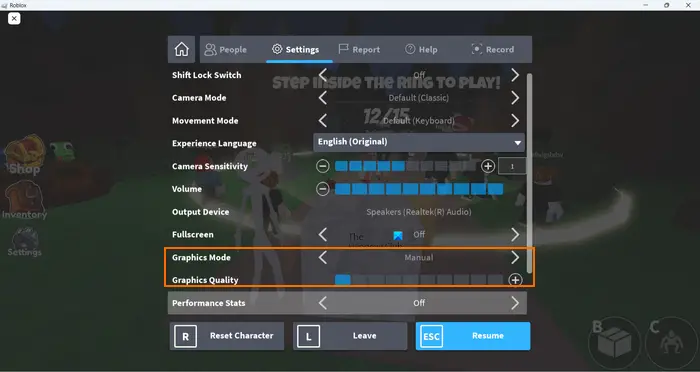
Maximizing Roblox GPU usage through in-game settings involves adjusting the "Graphics Mode" to "Manual" and then sliding the "Graphics Quality" bar to its highest setting. You should also ensure "Full Screen" mode is enabled, as it often dedicates more resources. Experiment with these settings, starting high and lowering them slightly if you encounter stutters, to find the sweet spot where your GPU is working hard without causing instability. Higher graphics quality directly translates to more GPU workload.
How do updated GPU drivers affect Roblox performance?
Updated GPU drivers are critical for Roblox performance. Drivers provide optimized instructions for your graphics card to interact with games. Modern drivers often include specific game optimizations, bug fixes, and performance enhancements that can significantly boost frame rates, reduce stuttering, and improve graphical fidelity in titles like Roblox. Regularly checking for and installing the latest drivers from NVIDIA, AMD, or Intel ensures your GPU is running at its peak efficiency for all your gaming, including Roblox.
Why might Roblox appear to be bottlenecked by my CPU instead of GPU?
Roblox can sometimes appear CPU-bottlenecked because its engine, especially in complex or heavily scripted games, relies heavily on single-core CPU performance. Even with a powerful GPU, if your CPU struggles to process game logic, physics, or scripts fast enough, the GPU will sit idle waiting for instructions, leading to lower utilization and framerates. Checking CPU usage during gameplay can confirm this; if it's consistently at 90-100% while your GPU is low, your CPU might be the limiting factor.
Does Roblox benefit from higher refresh rate monitors and GPU usage?
Yes, Roblox significantly benefits from higher refresh rate monitors, which in turn encourages higher GPU usage. To display more frames per second (FPS) on a 120Hz or 144Hz monitor, your GPU has to work harder to render those extra frames. If your GPU can consistently push frames above 60 FPS, a high refresh rate monitor allows you to actually see that performance gain, resulting in a much smoother and more responsive gaming experience. This often pushes your GPU to higher utilization levels.
Is it worth upgrading my GPU solely for Roblox?
Upgrading your GPU solely for Roblox is generally not necessary unless you're aiming for extremely high frame rates on a high refresh rate monitor, or if your current GPU is very old or integrated. Roblox is relatively CPU-intensive, so a high-end GPU might not be fully utilized if your CPU is weak. However, a modern mid-range GPU can provide a substantial boost in visual quality and smoothness, especially for newer, more graphically demanding Roblox experiences, making it a worthwhile upgrade for a balanced system.
What specific Windows power settings can improve Roblox GPU usage?
Windows power settings can impact Roblox GPU usage by ensuring your system and GPU operate at maximum performance. Go to Power Options in the Control Panel, then select "High performance" or "Ultimate Performance" if available. For an even finer tune, open Windows Settings, then Gaming, and click on "Game Mode" to ensure it's enabled. Also, in Graphics Settings, explicitly set Roblox to "High performance." These settings prevent your system from throttling power to your GPU, allowing it to work harder for Roblox.
Welcome, fellow gamers! If you're like the average US gamer, around 36 years old, you probably love unwinding with some Roblox after a long day of work and family commitments. You've invested in a decent PC, perhaps even a gaming laptop, expecting a smooth, vibrant experience in your favorite Roblox games. Yet, you might often find yourself scratching your head wondering, "Why isn't Roblox using my GPU more?" You open your task manager and see your powerful graphics card idling while Roblox struggles with low frame rates, stuttering, and less-than-stellar visuals. This common frustration can turn a relaxing escape into a source of annoyance, especially when 87% of US gamers regularly play for an average of 10+ hours a week, looking for fun and skill-building.
You're not alone in this digital dilemma. Roblox, with its ever-expanding universe of user-created games, can be surprisingly demanding, but it doesn't always optimize its resource usage automatically. The good news is that unlocking your GPU's full potential for Roblox isn't rocket science, and it doesn't require expensive upgrades right away. This guide is your friendly, straightforward roadmap to a smoother, more visually appealing Roblox experience. We'll tackle common pain points, offer practical solutions, and get you back to enjoying Blockburg or Adopt Me with the performance you deserve. Let's make Roblox use more GPU and transform your gameplay.
Why Isn't Roblox Using My Graphics Card Fully?
Roblox often struggles to fully utilize your dedicated GPU for several reasons. Primarily, it can be due to default system settings favoring integrated graphics on laptops, a lack of up-to-date GPU drivers, or Roblox's engine itself being more CPU-intensive for certain game elements. Many older Roblox experiences are heavily reliant on single-core CPU performance, meaning even if your GPU is powerful, it might be waiting for the CPU to process game logic, resulting in lower utilization rates and frustratingly low FPS. Ensuring your system directs Roblox to use the dedicated GPU is the first critical step to addressing this common bottleneck.
How Do I Check If Roblox Is Using My GPU?
To verify if Roblox is actively engaging your GPU, the simplest method is to use your operating system's built-in tools. On Windows, open the Task Manager (Ctrl+Shift+Esc), navigate to the "Performance" tab, and select your GPU. When Roblox is running, you should see activity on your dedicated GPU (GPU 0 or GPU 1, depending on your setup) rather than just the integrated graphics. Additionally, tools like MSI Afterburner or NVIDIA's GeForce Experience overlay can provide real-time metrics for GPU usage, temperature, and clock speeds while you're playing. A low GPU utilization percentage coupled with poor performance suggests a problem.
What Are the Best In-Game Settings for Roblox GPU Usage?
Optimizing Roblox's in-game settings is crucial for making it utilize your GPU effectively. Once you are in a Roblox game, press the Esc key to open the menu. Navigate to "Settings." Here, you'll find the "Graphics Mode" option. Change it from "Automatic" to "Manual." This allows you to control the "Graphics Quality" slider. Push this slider to its highest setting (level 10) to force your GPU to render more details, textures, and effects. While this will demand more from your GPU, it will also provide the best visual fidelity and ensure your graphics card is working hard. If performance dips too much, gradually lower it until you find a comfortable balance. Also, ensure you are playing in "Full Screen" mode, as this often dedicates more resources to the game.
How Can I Update My Graphics Drivers for Optimal Roblox Performance?
Keeping your graphics drivers up to date is paramount for optimal gaming performance in any title, including Roblox. Drivers are the software bridge between your GPU hardware and the games you play, and updated versions frequently include performance optimizations, bug fixes, and improved compatibility for new games or game updates. To update: first, identify your GPU (NVIDIA, AMD, or Intel). Then, visit the official website of your GPU manufacturer. NVIDIA users should download GeForce Game Ready Drivers, AMD users should get Radeon Software Adrenalin Edition, and Intel users should find their latest Arc or integrated graphics drivers. Download the latest stable version and perform a clean installation to avoid potential conflicts. This simple step often provides a noticeable boost to frame rates and stability in Roblox and other games.
What Windows Settings Impact Roblox GPU Utilization?
Several Windows settings can significantly impact how Roblox utilizes your GPU. Firstly, navigate to Windows Settings > System > Display > Graphics Settings (under Related Settings). Here, click "Browse" and locate your Roblox application executable (often found in C:Users[YourUsername]AppDataLocalRobloxVersions and look for the version folder containing RobloxPlayerBeta.exe). Add it to the list, click on it, and select "High performance" under "Options." This explicitly tells Windows to use your dedicated GPU for Roblox. Secondly, ensure your Power Plan is set to "High performance" or "Ultimate Performance" (if available) via the Control Panel > Hardware and Sound > Power Options. These settings prevent your system from throttling your GPU's power, allowing it to work at its maximum capacity. Lastly, enable "Game Mode" in Windows Settings > Gaming > Game Mode, as it helps prioritize system resources for gaming.
Are There NVIDIA or AMD Control Panel Tweaks for Roblox?
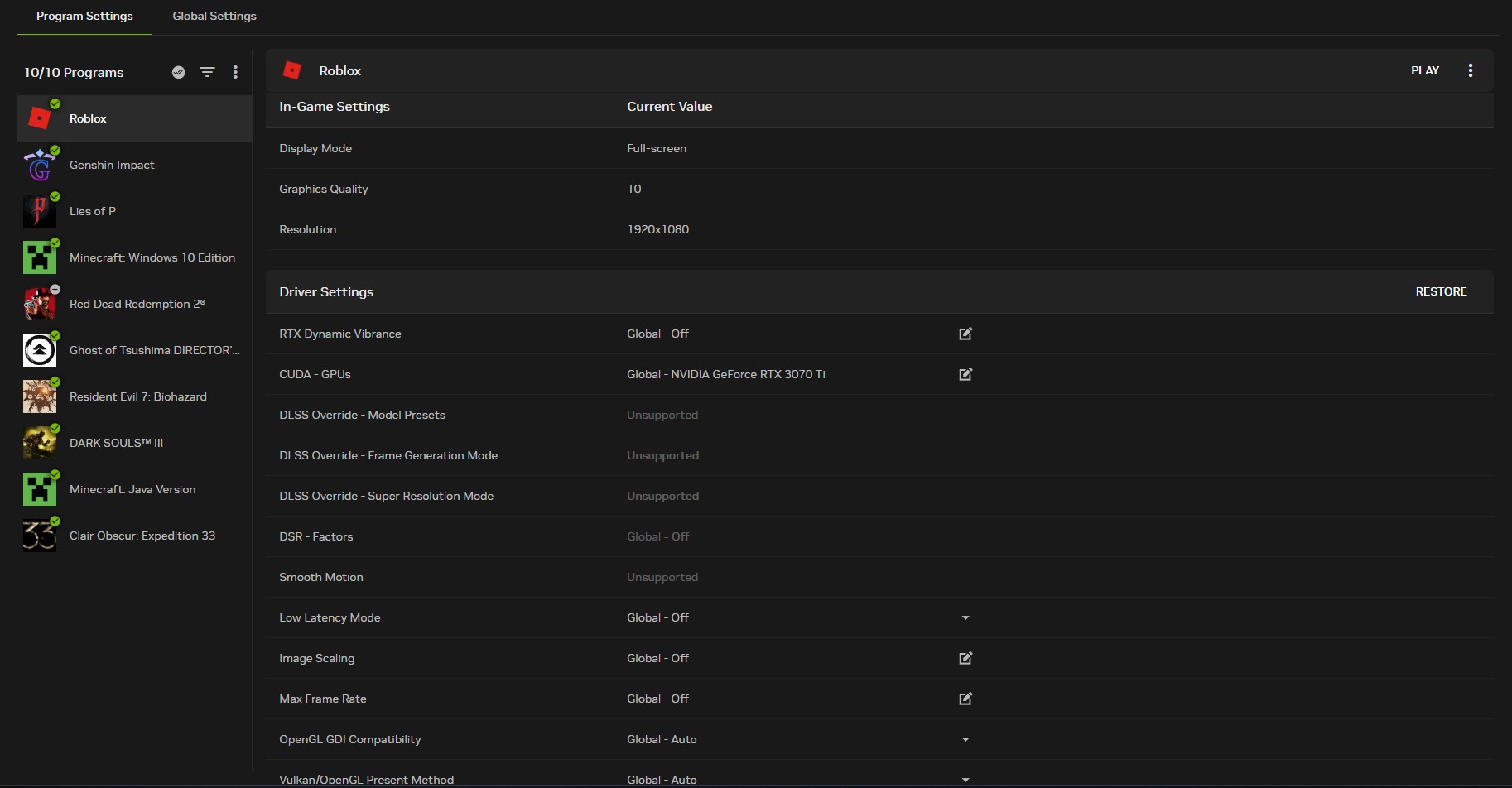
Yes, both NVIDIA and AMD offer control panel settings that can be tweaked to favor Roblox GPU usage. For **NVIDIA** users, open the NVIDIA Control Panel. Go to "Manage 3D settings," select the "Program Settings" tab, and add "RobloxPlayerBeta.exe" (if it's not already there). Then, set the "Preferred graphics processor" to "High-performance NVIDIA processor." You can also adjust settings like "Texture filtering - Quality" to "High performance" and ensure "Power management mode" is set to "Prefer maximum performance." For **AMD** users, open Radeon Software. Go to the "Gaming" tab, find or add RobloxPlayerBeta.exe, and ensure its "Graphics Profile" is set to "Gaming" or manually adjust individual settings like "Radeon Anti-Lag" or "Radeon Boost" for improved responsiveness and FPS. These direct GPU-level configurations provide fine-tuned control over how your card handles Roblox.
How Do Background Applications Affect Roblox GPU Performance?
Background applications can significantly impact Roblox GPU performance by competing for system resources. Programs like web browsers with multiple tabs, video streaming services, chat applications (Discord being an exception if managed well), or other demanding software can consume CPU cycles, RAM, and even GPU resources, leaving less available for Roblox. This resource contention can lead to lower GPU utilization for Roblox, as the system tries to balance demands. Before launching Roblox, close any unnecessary programs running in the background. Even subtle resource hogs can cause micro-stutters and reduce overall frame rates, diminishing your gaming experience. A clean slate ensures Roblox has the maximum available power from your GPU and CPU.
When Should I Consider Hardware Upgrades for Better Roblox FPS?
While software optimizations can go a long way, there comes a point where hardware limitations become the primary bottleneck for Roblox performance. If, after trying all software tweaks, your GPU utilization remains low while your CPU is consistently at 90-100%, a CPU upgrade might be necessary, as Roblox often bottlenecks on single-core CPU performance. If your GPU is old (e.g., 5+ years) and consistently at 100% utilization with low FPS, a GPU upgrade would be beneficial. Modern GPUs like an NVIDIA RTX 3050/4060 or AMD RX 6600/7600 offer excellent value and power for money. Also, consider upgrading your RAM to 16GB if you're still on 8GB, as insufficient RAM can force your system to use slower virtual memory, impacting overall performance and frame delivery to your GPU. Remember, balance is key; a powerful GPU paired with a weak CPU won't yield optimal results for Roblox.
Can I Use Third-Party Tools to Boost Roblox GPU Usage?
While some third-party tools promise to boost gaming performance, caution is advised. Many "game boosters" or "optimization" tools primarily close background applications, which you can do manually. Some tools, like Fan Control or MSI Afterburner, allow you to monitor and manually adjust GPU fan curves or even overclock your GPU. Overclocking can increase GPU usage and performance, but it also increases heat and power consumption and carries a risk of instability or hardware damage if not done carefully. For the average gamer who values stability and longevity, sticking to official driver settings and Windows optimizations is generally safer and sufficient for making Roblox use more GPU effectively. Always download software from reputable sources if you do choose to experiment.
Why Is Proper Cooling Important for Roblox Performance?
Proper cooling is absolutely critical for sustained Roblox performance and GPU utilization. When your GPU or CPU gets too hot, they automatically reduce their clock speeds (a process called thermal throttling) to prevent damage. This throttling directly leads to lower frame rates, stuttering, and reduced GPU usage, as the components are no longer running at their peak potential. Ensure your PC has good airflow, clean out dust from fans and heatsinks regularly (at least every 3-6 months), and consider replacing thermal paste on older components. For laptops, a cooling pad can make a significant difference. Maintaining optimal temperatures allows your GPU to consistently operate at higher clock speeds, providing more stable and higher frame rates in Roblox, making it crucial for an uninterrupted and enjoyable gaming session.
FAQ Section: Quick Fixes for Roblox GPU Problems
Below are some frequently asked questions that busy gamers often have when troubleshooting Roblox performance:
Can my CPU bottleneck Roblox GPU usage?
Absolutely. Roblox is notoriously CPU-intensive, especially in complex games with many scripts or players. If your CPU can't process game logic fast enough, your GPU will sit idle, waiting for data, leading to low utilization and poor FPS regardless of your GPU's power. A balanced system is key.
Does Roblox support ray tracing?
As of late 2024, Roblox Studio has introduced beta features for advanced lighting and rendering, hinting at future ray tracing capabilities. However, native, widely implemented ray tracing for all experiences is not yet fully integrated across all Roblox games for general users, though creators are experimenting with advanced rendering techniques.
How often should I update my GPU drivers for Roblox?
It's generally recommended to update your GPU drivers every few months or whenever your GPU manufacturer releases a significant "game-ready" driver. These updates often include optimizations specifically designed to improve performance and stability in various games, including updates that might benefit Roblox.
Is it safe to force Roblox to use a dedicated GPU?
Yes, it is completely safe and often recommended to force Roblox to use your dedicated GPU through Windows Graphics Settings or your GPU control panel. This simply tells your system to prioritize the more powerful graphics card, preventing potential performance issues caused by running on weaker integrated graphics.
Will increasing my RAM improve Roblox GPU usage?
Increasing RAM, particularly if you have less than 16GB, can indirectly improve Roblox GPU usage. If your system runs out of physical RAM, it relies on slower virtual memory, which slows down data transfer to the GPU. More RAM ensures faster data access, allowing your GPU to be fed information more quickly and consistently, potentially boosting its utilization.
There you have it, fellow adventurers! By following these practical steps, you're well on your way to making Roblox utilize your GPU more effectively. No more frustrating stutters or blurry visuals. Just smooth, high-fidelity gameplay that truly lets you relax and enjoy the incredible worlds Roblox has to offer, even if you only have an hour or two to spare each evening. Remember, optimizing your PC for gaming is an ongoing process, but these foundational tweaks will give you a significant edge. What's your biggest gaming challenge with Roblox or other games? Comment below and let's help each other out!
Optimize in-game graphics settings. Update GPU drivers regularly. Adjust Windows graphics preferences for Roblox. Disable background apps. Utilize GPU control panel settings. Ensure proper cooling for sustained performance. Consider minor hardware upgrades for older systems.
35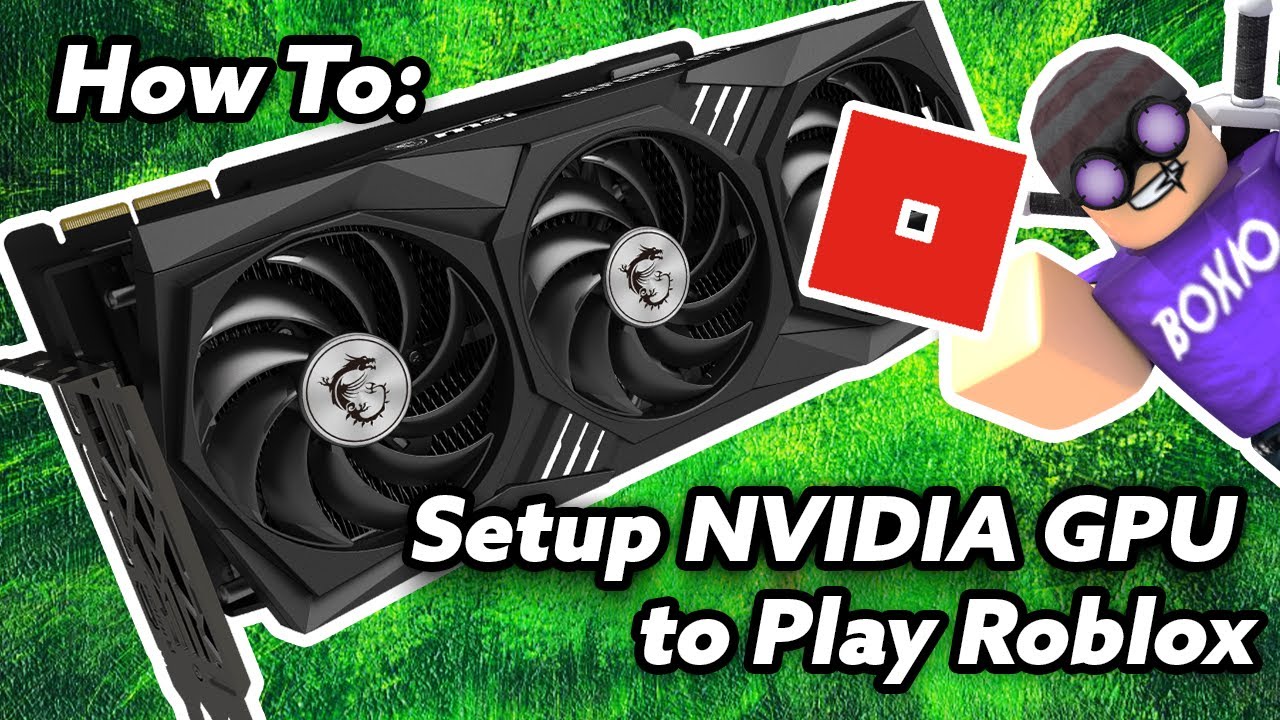


How To Use NVIDIA Graphics Card To Play Roblox YouTube . Is Roblox CPU Or GPU Intensive Fix Lag Boost FPS Fast Is Roblox Cpu Or Gpu. How To Make A Roblox Game In 2026 Beginner Guide How To Make A Roblox Game In 2026 Beginner Guide 1024x683 . How To Boost Graphics And FPS In Roblox Guiding Tech Increase In Game Graphics In Roblox 1024x676 . Best GPU For Roblox In 2024 1v9 Best Gpu For Roblox




How To Make Roblox Use More GPU AEANET Technology Question Guide.webp. Roblox Shaders Install Use And Improve Graphics In 2026 Roblox Shaders 1.webp. Ready To Share How To Publish Your Roblox Game . Roblox Me Command What Does It Actually Do NoFilter. Roblox Not Using GPU Fix Low FPS Stutter Fast
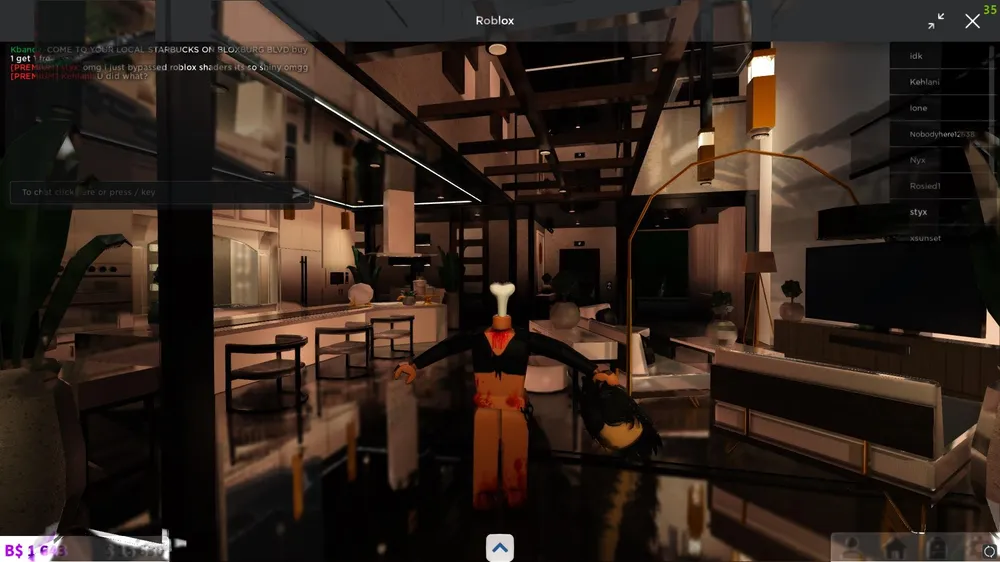


Roblox Shaders Install Use And Improve Graphics In 2026 Roblox Shaders. What Is Haptic Roblox A Player S Guide Oar2 . Is Roblox CPU Or GPU Intensive Fix Lag Boost FPS Fast When Does Roblox Use More Gpu. How To Make Roblox Use GPU H Ng D N T I U H A Hi U N Ng How Could I Force Roblox To Use More Of My Gpu For Higher V0 . How To Run ROBLOX Off Your Graphics Card Nvidia Users Only YouTube


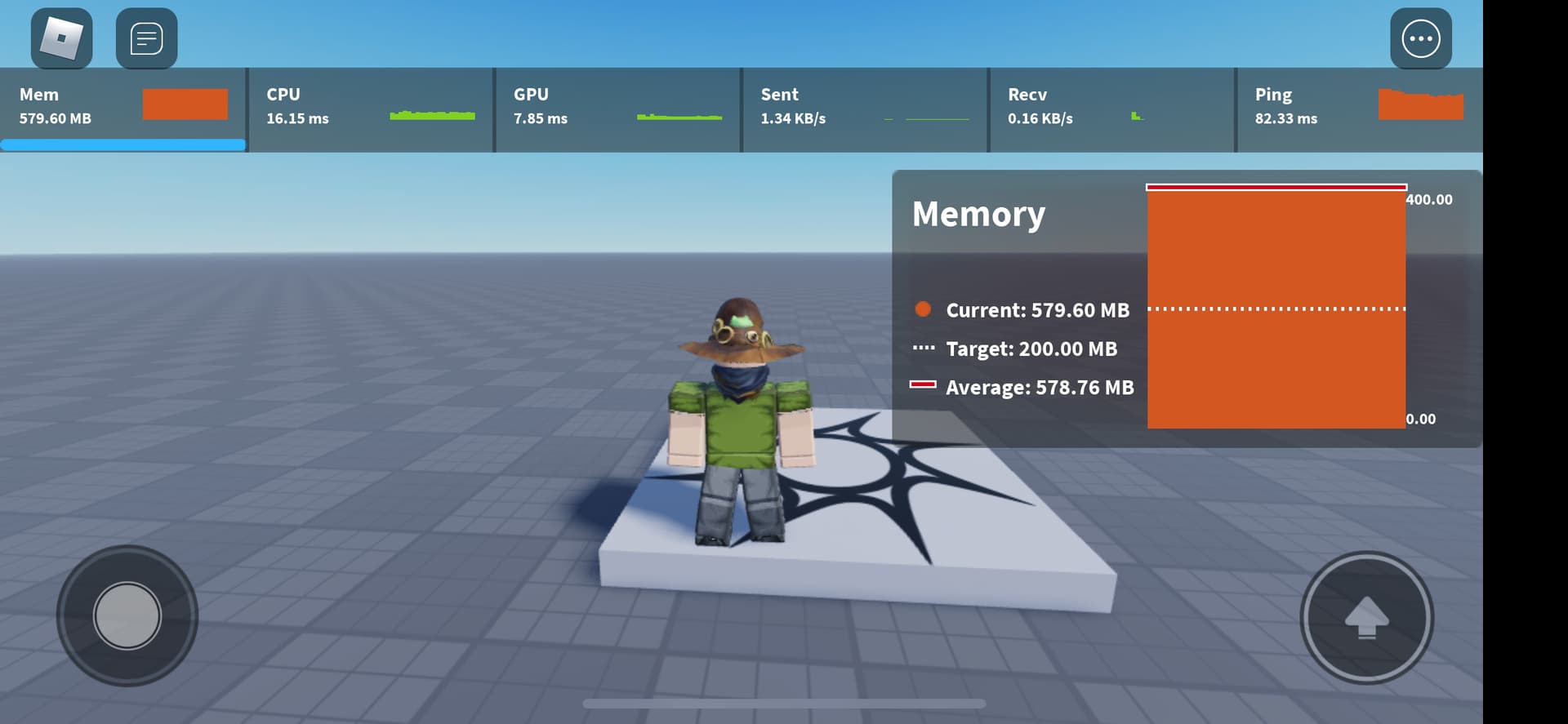

How To Get MAX Graphics On ROBLOX PC Fast Tutorial YouTube . How To Move In Roblox On PC H Ng D N Chi Ti T . How To Dedicate More RAM To Roblox Robots Net How Much Ram To Play Roblox 1700446474 . How To Make A Game Pass In Roblox 2026 Step By Step Guide Game Pass Roblox.webp. How To Make Game Use GPU Instead Of CPU Windows 11 YouTube



How To Increase Graphics Quality In Roblox 2025 Easy Guide YouTube . Unlocking Roblox S Advanced Options Is Easy Right 1200x1769 . 2026 GPU Prices Going Up Best Graphics Card To Buy Now Best GPU . How To Make A Roblox Game On Mobile IPad Phone 2026 Obby Obby Blog. How To Add People Roblox Easily Your 2026 Guide



Faster Roblox How To Boost Performance Now Lower Roblox Graphics Settings Windows . How To Message On Roblox 2026 A Quick Guide . Roblox Best PC Settings To Increase FPS And Maximize Performance Roblox NVIDIA Settings . How To Make Roblox Use GPU AEANET Technology Knowledge Guide.webp. How To Reduce Lag On Roblox Using A VPN 2026 Orange BYBK How To Reduce Lag On Roblox Using A VPN 2024


Roblox RTX GRAPHICS Tutorial Client Settings Config Best Quality For . How To Make Roblox Less Laggy All You Need To Know Lowering Your Graphics Settings . 4 To Roblox Studio In 2026 Blog Uniday Studio Cb66319f E804 477d 91db . How To Add Roblox In Nvidia GeForce Experience YouTube . How To Boost Graphics And FPS In Roblox Guiding Tech Roblox In Game Options 768x463