Are you a seasoned Roblox player looking to streamline your gaming experience and achieve deeper immersion? This comprehensive guide on how to disable UI navigation in Roblox is designed specifically for gamers who value precision, focus, and a clean interface. Many adult gamers, balancing work and family, seek efficient ways to optimize their playtime, and an intrusive UI can often hinder that. Learn practical, actionable methods to hide distracting elements, giving you unparalleled control over your screen real estate. We dive into common pain points like accidental clicks or obscured views, offering solutions that enhance gameplay, reduce visual clutter, and allow for a truly personalized Roblox environment. Discover techniques ranging from simple in-game settings to more advanced scripting for developers, ensuring you can tailor Roblox to your exact preferences. Optimizing your Roblox UI navigation is not just about aesthetics; it is about performance, skill building, and ultimately, enjoying your valuable gaming sessions to the fullest. This guide helps you navigate the options for a cleaner, more enjoyable Roblox session.
How do I hide the default Roblox top bar?
You can hide the default Roblox top bar using a LocalScript within your game. Place the script in StarterPlayerScripts. Inside the script, you would reference 'StarterGui:SetCore('TopbarEnabled', false)'. This effectively removes the top bar, offering a clean, full-screen canvas for your custom UI or an uncluttered view of your game world. Remember, this applies to the game you are developing, not other games you play.
What is the easiest way to remove the chat window in Roblox?
The easiest way to remove the default chat window in your Roblox game as a developer is to use a LocalScript. In StarterPlayerScripts, you can disable the chat by setting 'StarterGui:SetCoreGuiEnabled(Enum.CoreGuiType.Chat, false)'. This hides the chat window for all players in your experience, giving you full control to implement a custom chat system if desired, or to remove chat entirely for specific game modes.
Can I disable specific parts of the Roblox CoreGui like the player list?
Yes, you can disable specific parts of the Roblox CoreGui, such as the player list. Using a LocalScript in StarterPlayerScripts, you would use 'StarterGui:SetCoreGuiEnabled(Enum.CoreGuiType.PlayerList, false)'. This command tells Roblox to hide the default player list. This is particularly useful for immersive games where a custom leaderboard or player display is preferred over the standard Roblox UI, or for reducing visual clutter.
How do I prevent accidental clicks on UI elements in Roblox?
To prevent accidental clicks on UI elements, especially those that trigger unwanted actions, developers should consider a few strategies. First, ensure UI elements are appropriately sized and spaced. Second, use 'MouseEnter' and 'MouseLeave' events to provide visual feedback (like highlighting) to indicate interactivity. For critical actions, implement confirmation prompts. Lastly, for non-interactive elements that might overlap, ensure their 'Active' property is set to 'false' so mouse events pass through them, preventing unintended clicks on background UI.
What is the script to disable all default Roblox UI elements?
There isn't a single universal script to disable *all* default Roblox UI elements with one line, as CoreGui elements are managed individually. However, you can write a LocalScript in StarterPlayerScripts that iteratively disables key CoreGui components. For example, it might contain lines like 'StarterGui:SetCoreGuiEnabled(Enum.CoreGuiType.Chat, false)', 'StarterGui:SetCoreGuiEnabled(Enum.CoreGuiType.PlayerList, false)', and 'StarterGui:SetCore('TopbarEnabled', false)'. This combined approach covers most prominent default UI.
How can I disable the Roblox escape menu for a more locked-down experience?
Disabling the Roblox escape menu entirely is generally not recommended or straightforward due to its core functionality for players (like leaving the game or adjusting settings). Roblox doesn't provide a direct API to fully disable it for players. However, developers can use 'StarterGui:SetCore('ResetButtonCallback', function() return false end)' to disable the 'Reset Character' button within the menu. For a locked-down experience, focus on custom controls and visual cues rather than trying to remove essential system menus, as players expect basic system navigation.
Is it possible to toggle UI visibility in Roblox based on player actions or events?
Yes, it is entirely possible and common practice to toggle UI visibility based on player actions or game events. Developers can use LocalScripts to monitor various inputs (e.g., a key press via UserInputService, a button click, or specific game state changes). When a specific action occurs, the script can then change the 'Visible' property of a ScreenGui or individual UI element (e.g., 'MyCustomFrame.Visible = not MyCustomFrame.Visible'). This allows for dynamic interfaces that only appear when needed, enhancing immersion and reducing clutter.
Hey fellow gamers! Ever found yourself deep in a Roblox experience, only to have an accidental click on a UI element pull you out of the action? Or perhaps you're building something incredible and the default navigation bars just get in the way of your creative flow? You're not alone. For many of us who juggle jobs, families, and life's responsibilities, gaming is a cherished escape, a way to unwind, socialize, or hone our skills. The last thing we need is a clunky interface disrupting our precious relaxation time.
A recent survey showed that 87% of US gamers play regularly, often dedicating 10+ hours a week, with mobile gaming continuing its dominance alongside PC and console. This means a seamless user experience is more critical than ever. We value performance, value for money, and staying current without the hype. That's why understanding how to disable UI navigation in Roblox isn't just a niche trick; it's a vital skill for optimizing your play. This guide will walk you through various methods to take back control of your screen, ensuring a cleaner, more immersive Roblox experience tailored just for you. Let's dive in and transform your Roblox environment from cluttered to crystal clear.
Why would I want to disable UI navigation in Roblox?
Disabling UI navigation in Roblox primarily offers a cleaner, more immersive gameplay experience. Imagine playing an intense obby or a detailed role-playing game where every pixel matters. Unnecessary UI elements like the top bar, chat, or player list can obscure your view, lead to accidental clicks, or simply break your immersion. For creators, it's about showcasing their builds without distraction. For players, it's about focusing on the game world. This control allows for better screen real estate management, especially crucial for mobile players or those with smaller monitors, and it enhances performance by reducing the rendering load of unused elements. It helps gamers feel more connected to the virtual world and less to the game's interface.
How do I hide default Roblox UI elements using simple methods?
While Roblox doesn't have a single 'disable all UI' button for players in most games, there are common in-game settings and developer tools that can help. Many games include developer-implemented options to toggle UI visibility, often found in a settings menu. As a player, you can press the 'Escape' key to bring up the Roblox menu, which allows you to adjust certain settings like chat visibility or performance statistics. For a more direct approach in a development or testing environment, the Developer Console (F9) can be used to execute commands. However, these player-level options are usually limited to what the game creator allows. The true power of UI management comes from the developer's side, which we'll explore next.
What are the common methods for UI management in Roblox Studio?
For game developers, managing UI elements is fundamental to creating a polished experience. The primary method involves Lua scripting within Roblox Studio. Developers can access and manipulate default Roblox UI elements, often referred to as the CoreGui, which includes elements like the chat, player list, and backpack. By writing LocalScripts, developers can target specific UI components and set their 'Visible' property to false. This allows for conditional hiding or complete removal of elements that don't fit the game's design. Additionally, developers can create entirely custom UI systems, ensuring complete control over the user interface without relying on default Roblox behaviors.
Can I disable UI navigation without advanced scripting knowledge?
Yes, to a certain extent, you can disable some UI navigation even without advanced scripting. If you are a player, your options are limited to the in-game settings provided by the experience creator or using the 'Escape' menu to close certain overlays. If you are a developer, Roblox Studio offers an intuitive interface where you can physically delete or disable certain UI elements from the StarterGui or manipulate properties of ScreenGuis. For instance, you can disable the default backpack by unchecking the 'Enabled' property of the 'Backpack' element in the CoreGui within a LocalScript. While basic visibility toggling can be done with minimal code, completely redesigning the user's interaction flow might require more familiarity with Lua scripting and event handling.
How does disabling UI affect my game's performance and player experience?
Disabling unnecessary UI elements can positively impact game performance, especially on lower-end devices or for mobile gamers, which constitute a significant portion of the Roblox user base. When UI elements are hidden or removed, the game engine has fewer objects to render and update, potentially leading to higher frame rates and smoother gameplay. From a player experience standpoint, a clean UI reduces cognitive load, allowing players to focus more on the game's actual content and mechanics. This improved focus often translates to better gameplay, less frustration from accidental interactions, and a more immersive experience. However, developers must ensure that essential information or controls are still accessible through a well-designed custom UI, preventing confusion or hindering player progress.
What about implementing custom UI controls after disabling default navigation?
After successfully disabling default UI navigation, implementing custom UI controls is the logical next step for developers aiming for a unique and optimized player experience. Roblox Studio provides robust tools for creating custom user interfaces using ScreenGuis, Frames, TextLabels, ImageButtons, and more. You can design your own buttons, health bars, inventory systems, and chat interfaces. To make these custom UIs interactive, you'll use LocalScripts to detect player input (e.g., button clicks, keyboard presses via UserInputService or ContextActionService) and link them to game actions. This approach gives you complete aesthetic and functional control, allowing for interfaces perfectly suited to your game's theme and mechanics. It’s like designing your own dashboard for a custom car.
Are there risks to disabling Roblox UI elements, and how can I avoid them?
Yes, there are some risks associated with aggressively disabling UI elements, primarily related to player usability and game functionality. The biggest risk is removing essential UI that players need to understand or interact with the game. This can lead to frustration, confusion, and a poor player experience, potentially causing players to leave your game. To avoid these pitfalls, developers should: 1. Always test thoroughly across different devices and screen sizes. 2. Ensure that any removed default UI is replaced with a clear, functional custom alternative (e.g., if you remove the default chat, provide your own chat system). 3. Provide settings or options for players to toggle UI visibility, catering to different preferences. 4. Avoid disabling core functionality like the 'Escape' menu or critical safety features. Balance a clean interface with intuitive navigation.
How do I re-enable UI navigation if I need to or make a mistake?
Re-enabling UI navigation largely depends on how you disabled it. If you modified a property of a UI element to 'Visible = false' in a LocalScript, simply changing that property back to 'Visible = true' will re-enable it. If you deleted a UI element from StarterGui in Roblox Studio, you might need to re-add it from the Toolbox (if it's a common Roblox asset) or recreate it. For CoreGui elements, if you've explicitly disabled them via script, reverting or removing that script will restore the default behavior upon game launch. Always maintain backups of your game files or use version control (like Roblox's built-in history) when making significant changes to your UI or scripts. This way, any mistakes are easily reversible, saving you headaches and lost progress.
What tools or services does Roblox provide for advanced UI control?
Roblox offers a robust suite of tools for advanced UI control, primarily within Roblox Studio. Beyond basic ScreenGuis and UI elements, developers can leverage: 1. UIListLayout, UIGridLayout, UIPageLayout, UITableLayout: These objects automatically arrange UI elements, making responsive design easier. 2. TweenService: Allows for smooth animations of UI elements, enhancing visual appeal and user feedback. 3. UserInputService and ContextActionService: Essential for handling player input (mouse, keyboard, gamepad, touch) to interact with custom UIs. 4. PlayerGui: Each player has a PlayerGui that duplicates content from StarterGui, where LocalScripts can dynamically add, remove, or modify UI elements for individual players. 5. CoreGui: While generally not directly manipulable for deletion by developers, its elements can often be hidden or modified using specific scripts. Understanding these services empowers developers to create highly dynamic, professional-grade user interfaces.
Ultimately, taking control of your Roblox UI navigation is about crafting a personalized gaming experience. Whether you're a player seeking deeper immersion or a developer aiming for a flawless game, the tools and techniques exist to make it happen. Remember, a clean, intuitive interface allows the core fun of Roblox to truly shine, enhancing relaxation, skill-building, and social play.
FAQ Section
What is the Roblox CoreGui?
The Roblox CoreGui refers to the default UI elements Roblox automatically injects into every game, such as the chat window, player list, backpack, and 'Escape' menu. Developers can interact with it using LocalScripts to hide or modify these elements.
Can I completely remove the default Roblox chat?
Yes, developers can effectively remove or replace the default Roblox chat by setting its 'Visible' property to false via a LocalScript and then implementing a custom chat system using ScreenGuis and TextBoxes.
Is disabling UI navigation allowed by Roblox's terms of service?
Yes, modifying or disabling UI elements within your own Roblox experiences using sanctioned scripting methods is generally allowed and encouraged for game development. It gives creators artistic freedom to design unique interfaces. However, exploiting UI to gain an unfair advantage in other games is against the rules.
What's the best practice for responsive UI design in Roblox?
Best practices for responsive UI design include using UILayout objects (e.g., UIListLayout, UIGridLayout), setting UI element sizes with Scale (not Offset), and anchoring UI elements appropriately using AnchorPoint to ensure they adapt well to various screen resolutions and devices.
Does hiding UI improve performance on mobile devices?
Absolutely. Hiding or removing unnecessary UI elements reduces the number of rendered objects and computation, which can lead to significant performance improvements on mobile devices. This results in smoother gameplay and a better experience for the large mobile gamer base.
How do I handle player input after custom UI implementation?
After implementing custom UI, you handle player input using LocalScripts connected to UI element events (e.g., Button.MouseButton1Click) or through Roblox services like UserInputService and ContextActionService to detect keyboard, mouse, or touch input to trigger custom actions.
What's the difference between CoreGui and StarterGui?
StarterGui is a service in Roblox Studio where developers place UI elements (ScreenGuis) that they want to appear in their game. These elements are then copied to each player's PlayerGui when they join. CoreGui, on the other hand, contains Roblox's default, system-level UI elements.
Conclusion
Mastering how to disable UI navigation in Roblox offers a powerful way to personalize your gaming and development experience. Whether you're a player seeking deeper immersion or a developer crafting the next big hit, gaining control over your on-screen interface can drastically improve focus, performance, and overall enjoyment. By understanding the techniques discussed, from simple settings tweaks to advanced scripting with CoreGui and custom UI elements, you can create a Roblox environment that truly works for you. Don't let default interfaces dictate your experience; take charge and build the visual world you want.
What's your biggest UI challenge in Roblox, or what custom UI element are you most proud of creating? Comment below and share your insights!
Enhance Roblox immersion, Improve UI control, Hide distracting elements, Utilize Lua scripting for UI, Access Developer Console for adjustments, Optimize gameplay experience, Prevent accidental UI clicks, Customize Roblox interface.
35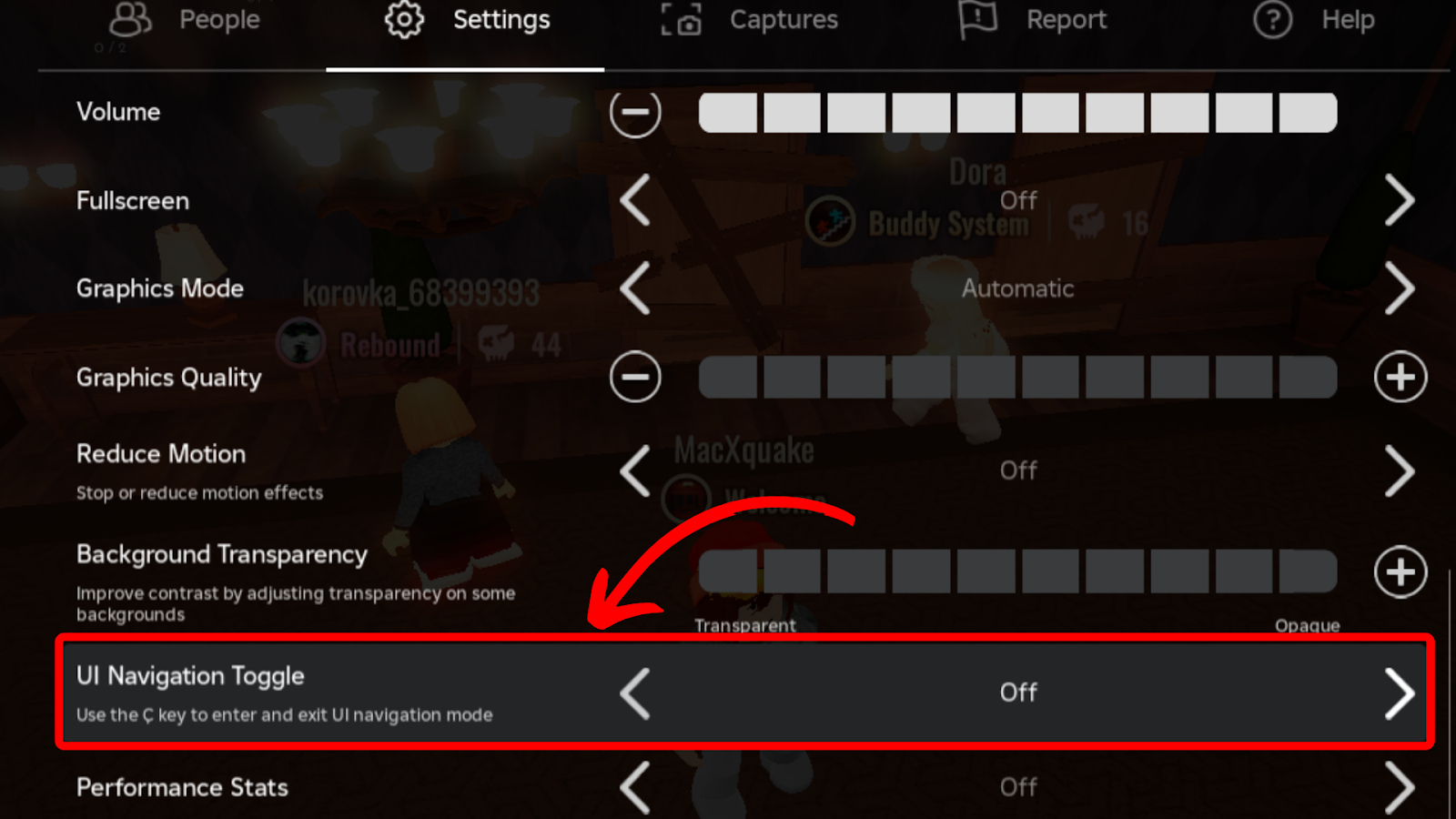

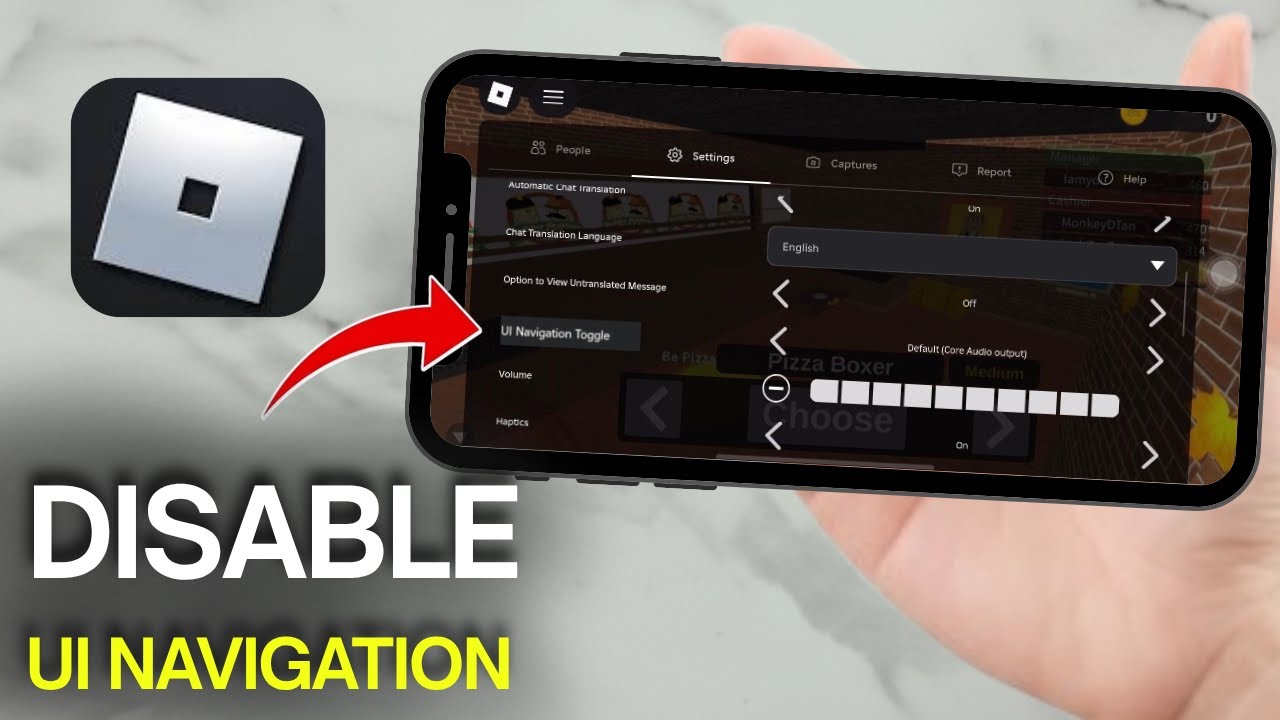


Want To Disable Roblox Captures Here S How Disable Ui Navigation Robloxbralt Disable UI Navigation Roblox . How To Stop All Animations Roblox At Reynaldo Leahy Blog . How To Disable Roblox UI Navigation Simple Guide YouTube . How To Disable Roblox UI Navigation Full Guide YouTube . How To Disable UI Navigation In Roblox PC H Ng D N Chi Ti T V L I Ch

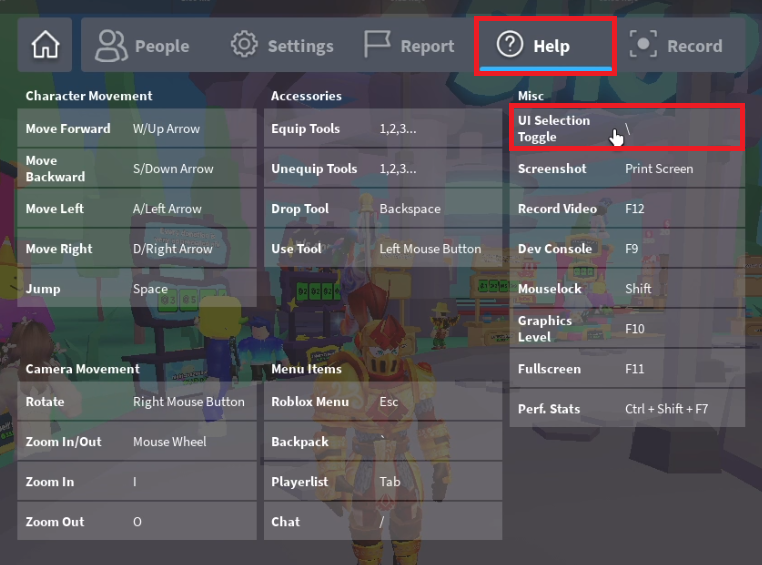
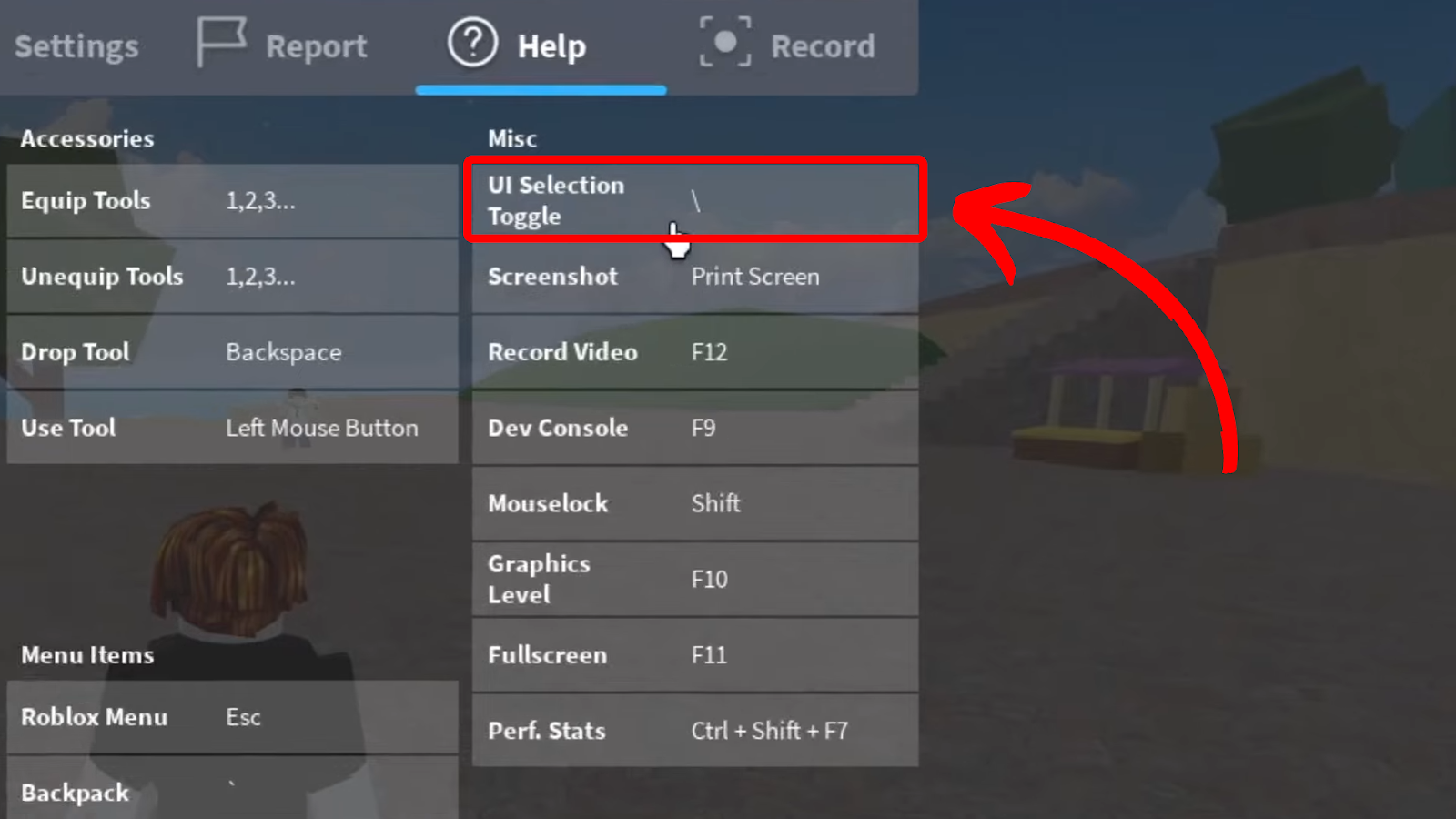


How To Turn Off UI Navigation In Roblox A Step By Step Guide YouTube . How To Enable UI Navigation Roblox Your Essential Guide 1 Roblox Settings. Stop The UI Turning Off Navigation In Roblox Ui Navigation Selection Toggle Settings . Stop The UI Turning Off Navigation In Roblox . How To Turn Off Roblox UI Navigation How To Disable Roblox UI



How To Disable Roblox UI Navigation Quick Easy YouTube . How To Disable UI Navigation In Roblox Games Adda How To Disable UI Navigation In ROblox . Stop The UI Turning Off Navigation In Roblox . Turn Off UI Navigation In Roblox PC Permanent And Quick Fixes Screenshot 2025 09 17 115343 . How To Disable Roblox UI Navigation Full Guide YouTube


Stop The UI Turning Off Navigation In Roblox . Stop The UI Turning Off Navigation In Roblox How Turn Off Ui Navigation Roblox . How To Enable UI Navigation Roblox Your Essential Guide Roblox How To Disable UI Navigation 2 . Stop The UI Turning Off Navigation In Roblox Image . How To Disable UI Navigation In Roblox Can T Move Fix Keyboard
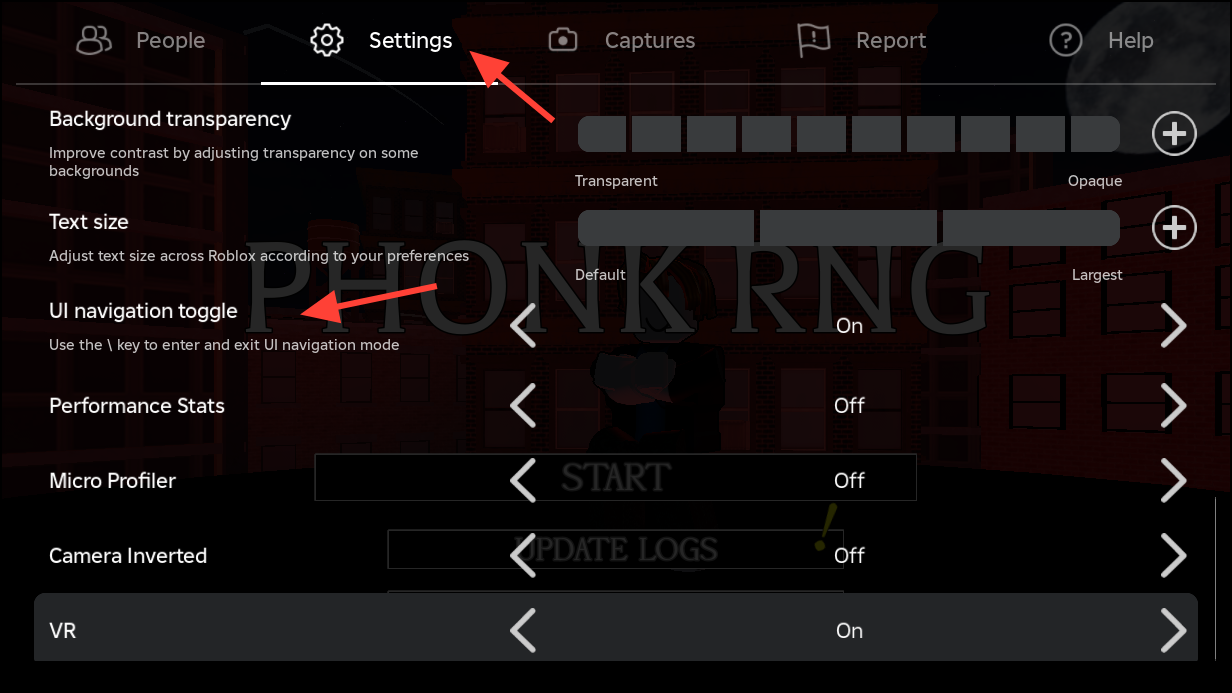
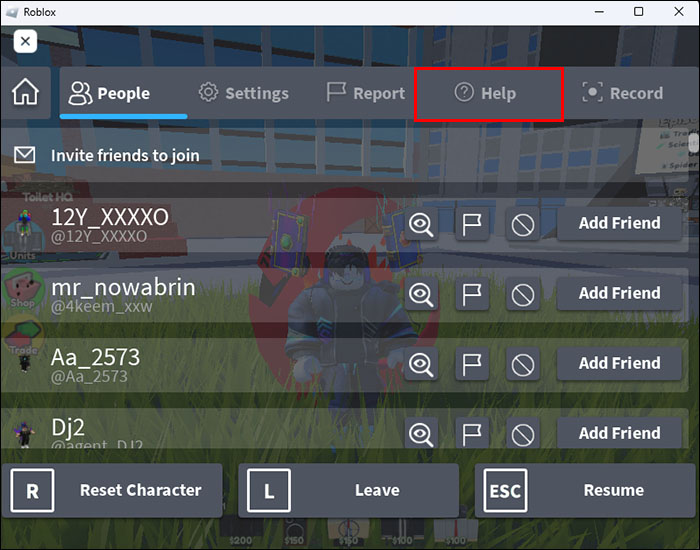

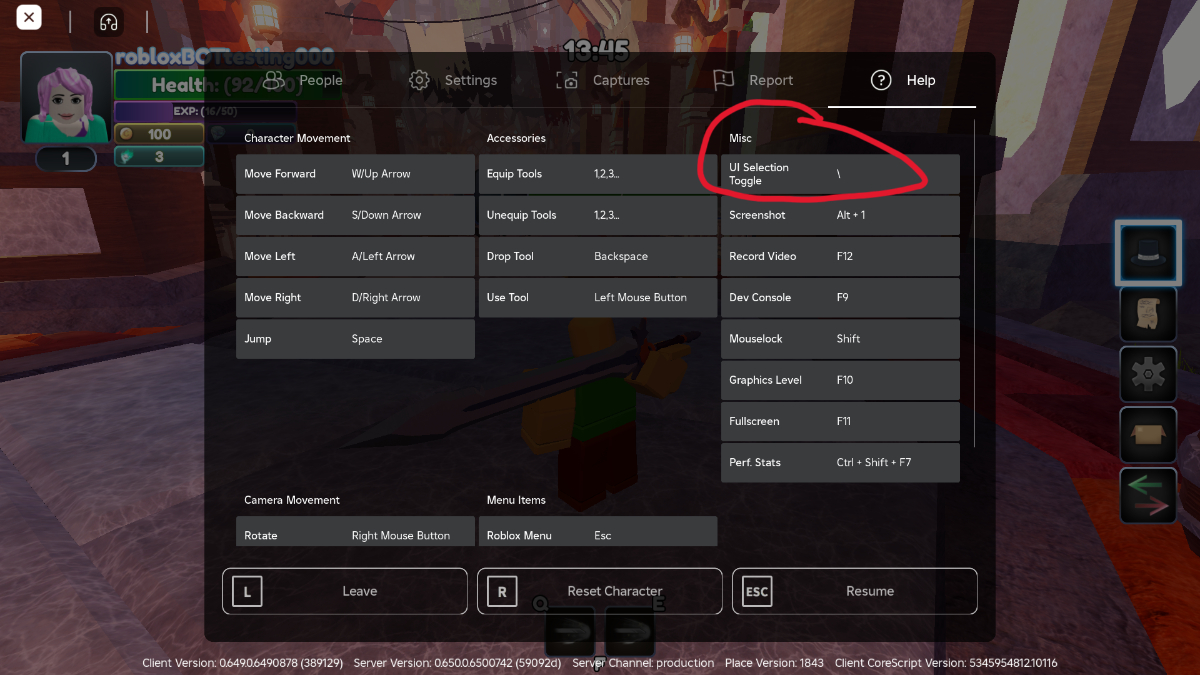

Turn Off UI Navigation In Roblox PC Permanent And Quick Fixes Image 1576 1 . How To Enable UI Navigation Roblox Your Essential Guide Roblox How To Disable UI Navigation 1 . How To Enable UI Navigation Roblox Your Essential Guide . How To Toggle UI Navigation And Get Moving Again On Roblox The Nerd Stash Roblox UI Navigation Menu . Stop The UI Turning Off Navigation In Roblox
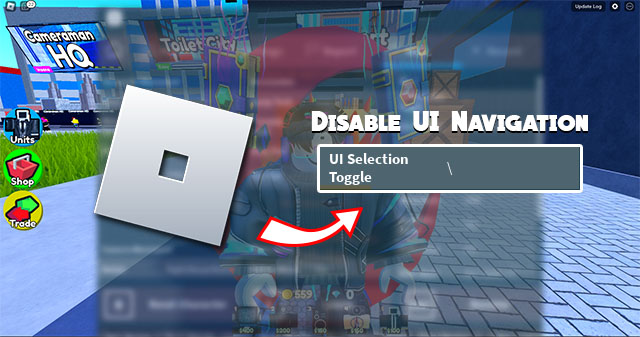


How To Disable Controls In Roblox Roblox How To Disable UI Navigation . How To Enable UI Navigation Roblox Your Essential Guide 2 UI Navigation Toggle. How To Disable UI Navigation In Roblox Unable To Move Fix YouTube . How To Enable UI Navigation Roblox Your Essential Guide . How To Enable UI Navigation Roblox Your Essential Guide 2 763x562


How To Disable UI Navigation In Roblox Fix Can T Move Glitch Roblox . Stop The UI Turning Off Navigation In Roblox . How To Disable Roblox UI Navigation Quick And Easy Tutorial YouTube . Next Gen Studio UI Preview Is Here Beta Page 31 . How To Disable Regional Pricing In PLS DONATE On Roblox Mobile And PC Disable Ui Navigation In Roblox