Navigating the world of gaming on a MacBook can sometimes feel like a puzzle for many US gamers, especially when it comes to popular cross-platform titles like Roblox. Many busy adults, balancing careers, family life, and personal commitments, seek reliable answers to whether their Apple laptop can handle their favorite digital escapes. This guide dives deep into the burning question: Can you truly get Roblox on your MacBook in 2026, and what kind of experience can you expect? We'll cut through the noise, offering clear, actionable insights into installation, performance optimization, system requirements, and troubleshooting common issues. Our goal is to empower you to enjoy Roblox whether you're unwinding after a long day or connecting with friends online, ensuring your gaming time is stress-free and fun. We'll cover everything from M-series chip performance to tips for balancing your gaming habits with your demanding life, keeping you current without the hype. Get ready to transform your MacBook into a Roblox-ready machine.
Is Roblox available on macOS?
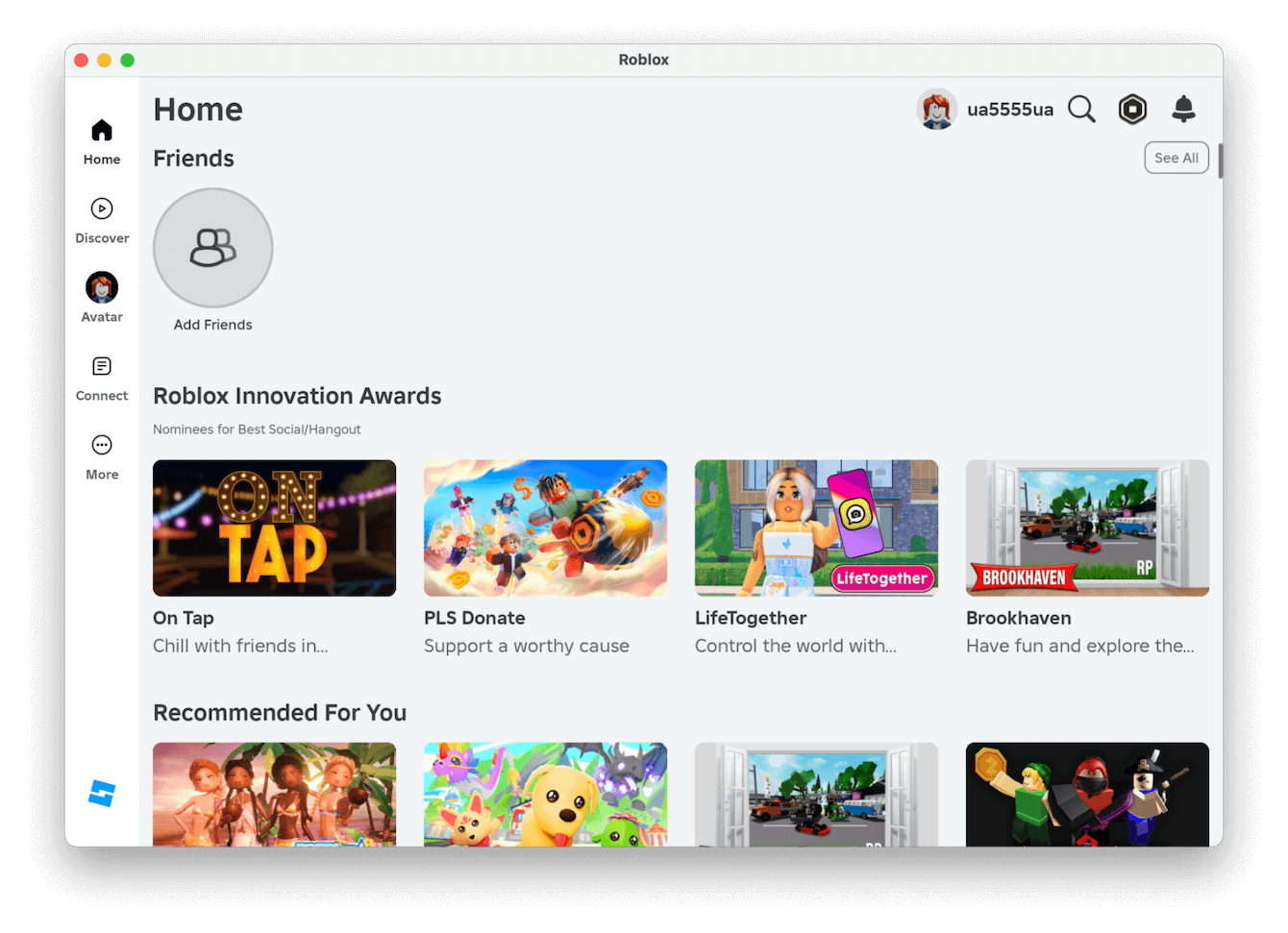
Yes, Roblox is fully available on macOS. Users can download the official Roblox Player client directly from the Roblox website, allowing for native gameplay without the need for emulators or complex workarounds. This ensures a stable and optimized experience for Mac users.
How to download Roblox on a MacBook?
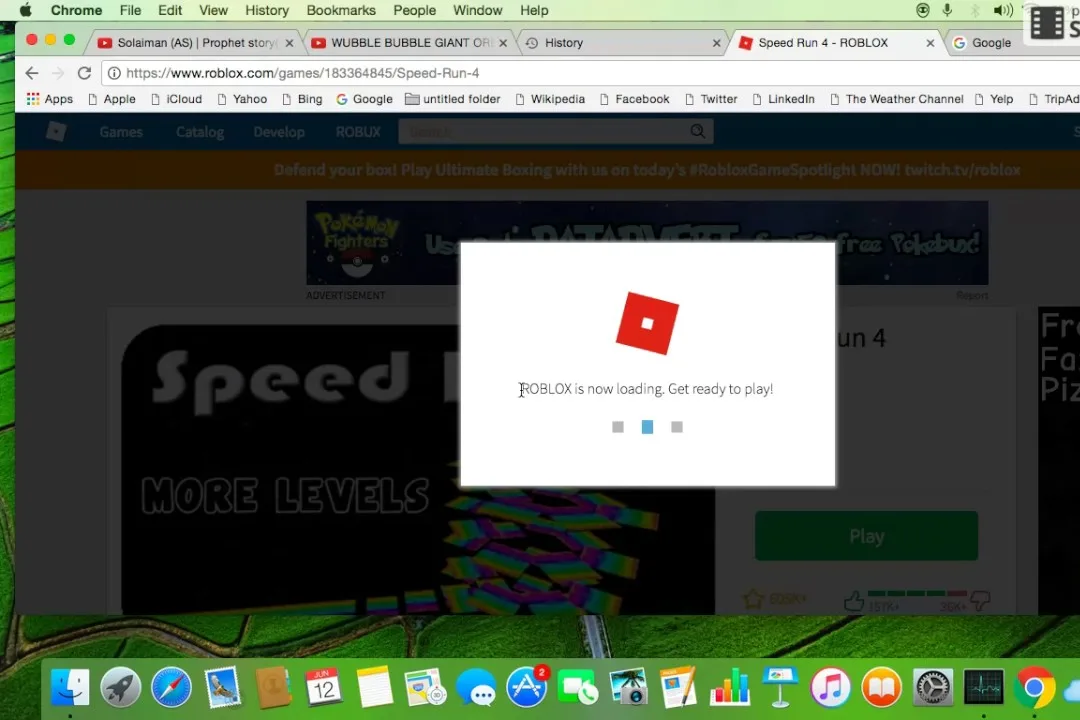
To download Roblox on your MacBook, visit the official Roblox website, sign in or create an account, then click any 'Play' button on an experience. The website will prompt you to download the Roblox Player application. Install it by dragging the icon to your Applications folder, then launch and log in to begin playing.
What are the specs needed for Roblox on Mac?
Minimum specs for Roblox on Mac include macOS 10.13 (High Sierra), an Intel Core i3 or equivalent processor, 4 GB of RAM, and 200 MB of free storage. For optimal performance, especially on newer M-series Macs, macOS Sonoma or later and 8 GB of RAM are recommended. An internet connection is always required.
Does Roblox run well on M1 Macs?
Yes, Roblox runs exceptionally well on M1 Macs. Apple Silicon chips (M1, M2, M3) offer superior performance, efficiency, and integrated graphics compared to older Intel models. This results in higher frame rates, faster loading times, cooler operation, and better battery life, providing a smooth and enjoyable Roblox experience.
Are there performance tips for Roblox on MacBook?
To improve Roblox performance on your MacBook, ensure macOS is updated and close background applications. Adjust in-game graphics settings to a lower level, disable 'Global Shadows', and consider using a wired internet connection. Clearing Roblox's cache periodically can also help. For M-series Macs, performance is generally strong, but these tips can still provide a boost.
Can my old MacBook Pro run Roblox smoothly in 2026?
While newer M-series MacBooks offer excellent performance, older Intel-based MacBook Pros might struggle with demanding Roblox experiences. For a smooth 2026 experience, ensure you meet the minimum system requirements, close background apps, and adjust in-game graphics settings to low. Upgrading RAM or storage isn't usually an option for MacBooks, so optimization is key for older models.
Why isn't Roblox launching after I install it on my Mac?
This can happen for a few reasons. First, ensure you've downloaded it from the official Roblox website. Check your internet connection, as Roblox needs to verify files. Sometimes, security settings might block it; go to System Settings Security & Privacy and allow apps downloaded from "App Store and identified developers." A simple restart of your MacBook can also resolve minor glitches.
How do I find social and cooperative games on Roblox that run well on Mac?
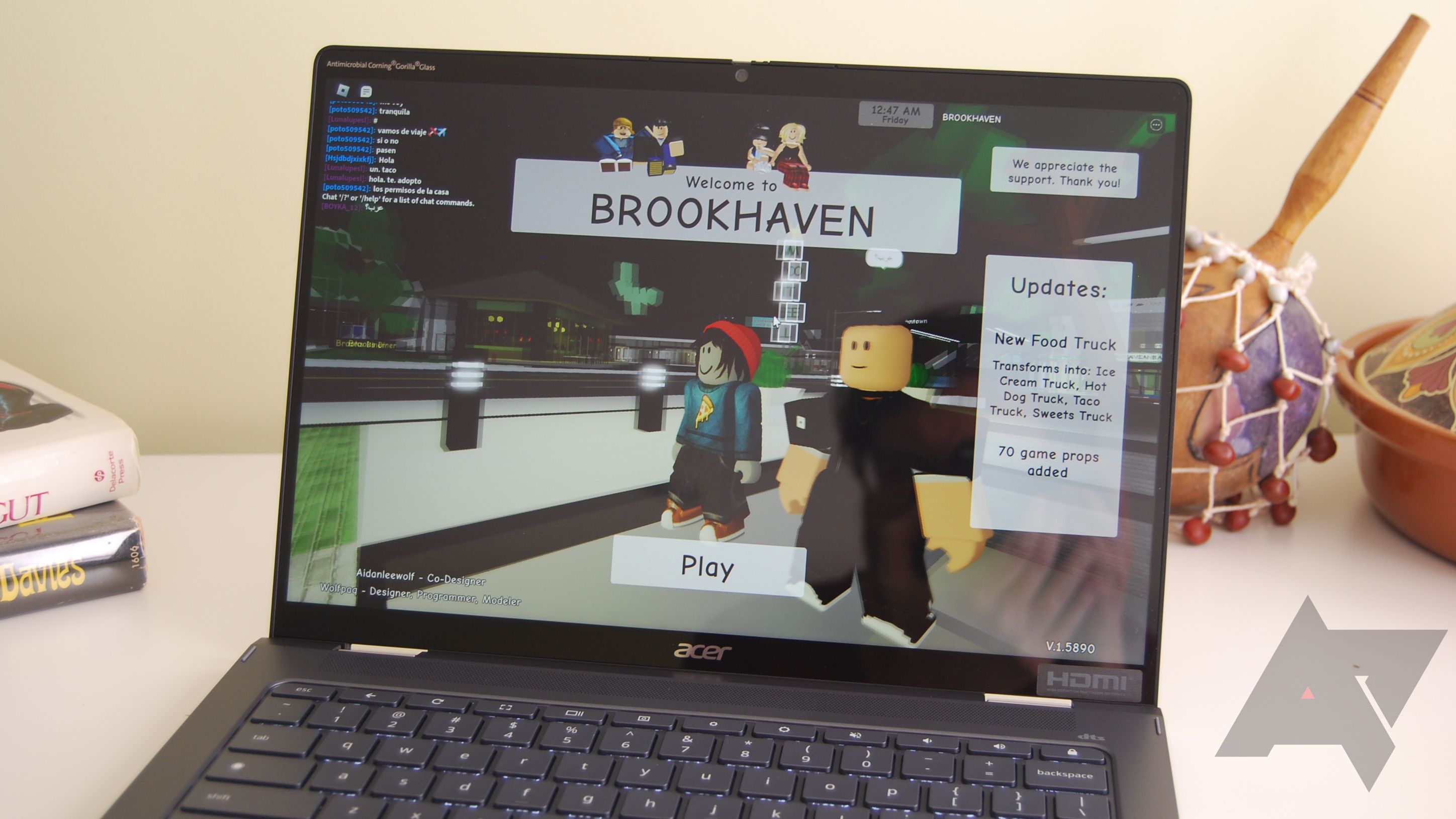
Many popular social games on Roblox are designed to be accessible across various devices, including Mac. Look for experiences labeled as "cozy," "social," or "adventure" in the Roblox discovery tab. Games like "Adopt Me," "Royale High," or "Brookhaven" are often optimized for broader compatibility and focus more on interaction than intense graphics, making them ideal for Mac users.
Is it worth buying Robux for in-game purchases if I only play on my MacBook?
Absolutely, if you enjoy the game and want to enhance your experience. Robux purchases work cross-platform, meaning anything you buy on your MacBook will be available if you later play on an iPad, phone, or PC using the same account. It's about personal enjoyment and supporting creators, regardless of your device. Just be mindful of your budget, as in-game spending can add up.
What accessibility features does Roblox offer for Mac users?
Roblox itself offers various in-game accessibility settings that apply regardless of your device, such as customizable keybinds, chat filtering, and some visual adjustments. On a MacBook, you can also leverage macOS's built-in accessibility features like VoiceOver, display adjustments (invert colors, reduce transparency), and mouse/trackpad settings to tailor your gaming experience to your needs.
Can I use parental controls for Roblox on my MacBook?
Yes, Roblox provides robust parental control features directly within the platform, accessible via the account settings. You can restrict chat, limit who your child can interact with, and set account restrictions based on age. Additionally, macOS offers Screen Time settings where you can manage app usage limits and content restrictions for your child's MacBook, adding another layer of control.
How often does Roblox update its Mac client, and what does it mean for performance?
Roblox typically updates its client frequently, often weekly or bi-weekly, to introduce new features, bug fixes, and performance improvements. These updates are usually automatic upon launching the game. For Mac users, consistent updates often mean better compatibility with new macOS versions and ongoing optimization, especially for Apple Silicon chips, which generally translates to smoother gameplay and fewer issues over time.
For many US gamers, especially those juggling jobs, families, and busy lives, the MacBook is a primary device for everything from work to entertainment. After a long day, unwinding with a quick gaming session or connecting with friends in a vibrant virtual world like Roblox is a cherished escape. But a common question lingers: Can you really get Roblox on your MacBook, and will it even run well?
You're not alone if you've wondered about this. MacBooks, while powerful for creative tasks, haven't always been the first choice for hardcore gaming. However, with the evolution of Apple Silicon chips (M1, M2, M3) and continuous software updates, the landscape is changing. Roblox, a giant in social gaming with its vast universe of user-created experiences, is perfectly suited for those quick, engaging sessions many adult gamers crave. In fact, a recent report indicates that about 87% of US gamers play regularly, often for 10+ hours a week, and a significant portion values mobile and cross-platform experiences for flexibility. This guide is designed to cut through the confusion, offering you a practical, no-nonsense look at playing Roblox on your MacBook in 2026. We'll cover everything from installation to optimization, ensuring your gaming time is focused on fun, not frustration.
Can you play Roblox on MacBook officially?
Yes, absolutely. Roblox has offered an official client for macOS for many years, and this support continues strongly into 2026. You do not need any emulators or complex workarounds to play. The Roblox Player application is natively available for macOS, allowing you to download, install, and jump into millions of experiences directly from your MacBook. This native support ensures a more stable and generally better-performing experience compared to unofficial methods.
How do I install Roblox on my MacBook?
Getting Roblox onto your MacBook is straightforward, designed to be user-friendly even for those who aren't tech-savvy. Here’s a simple step-by-step guide:
Open Your Web Browser: Go to the official Roblox website (roblox.com) using Safari, Chrome, or any other browser on your MacBook.
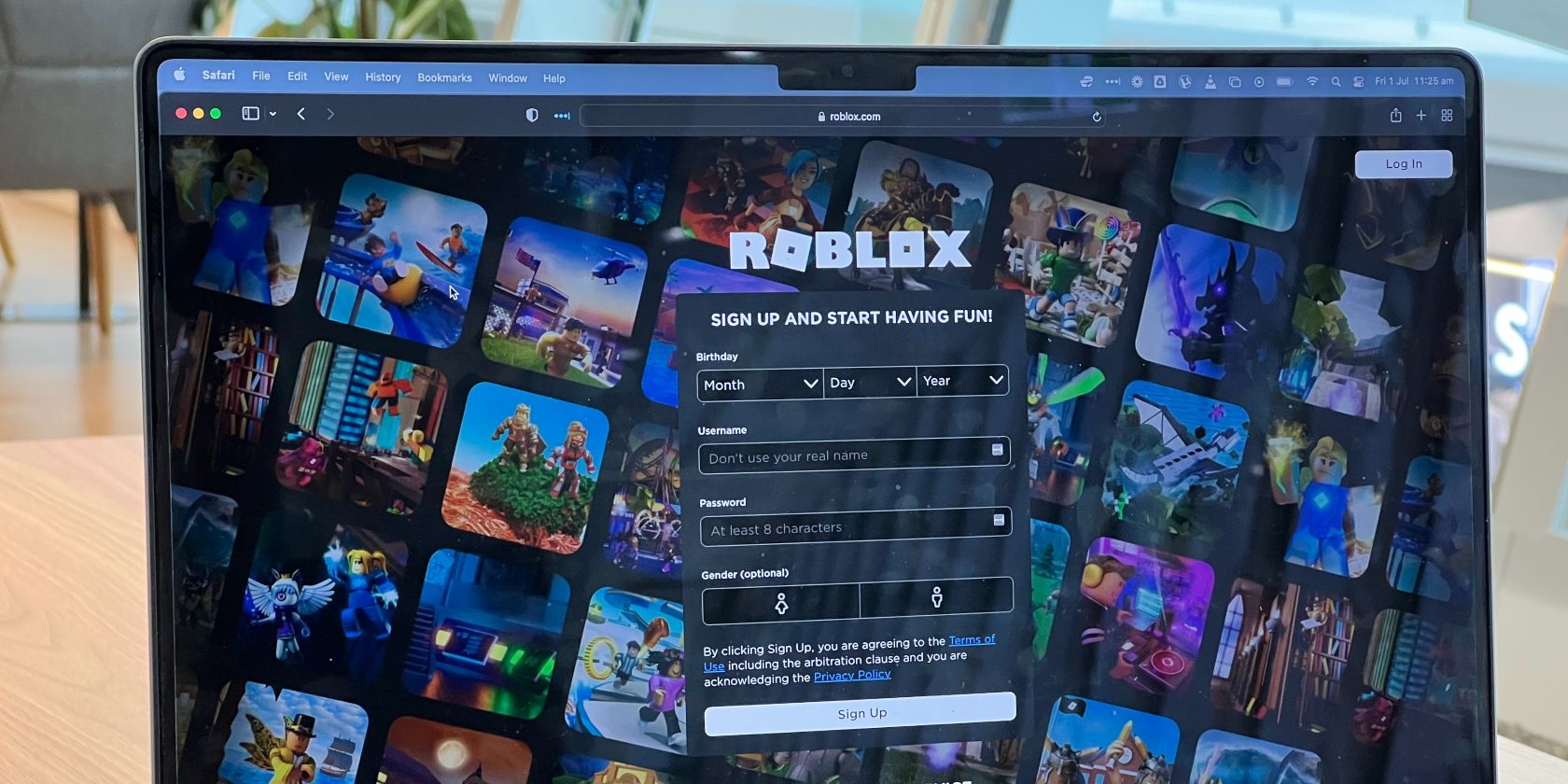
Log In or Sign Up: If you already have a Roblox account, log in. If not, you’ll need to sign up for a free account. This process is quick and just requires basic information like your birthdate and a username.
Choose an Experience: Once logged in, browse the vast library of games (which Roblox calls “experiences”). Select any experience you want to play and click on its thumbnail.
Click the Play Button: On the experience page, you'll see a prominent green “Play” button. Click it. Since you don't have the Roblox Player installed yet, the website will prompt you to download it.
Download the Roblox Player: A download window will appear. Follow the instructions to download the
RobloxPlayer.dmgfile to your MacBook’s Downloads folder.Install the Application: Locate the downloaded
.dmgfile (usually in your Downloads folder) and double-click it. A new window will open. Drag the “Roblox” application icon into your Applications folder as instructed.Launch Roblox: Once copied, you can close the installer window. Go to your Applications folder, find the Roblox icon, and double-click it to launch the game. It might ask for permission to open an application downloaded from the internet; click “Open.”
Start Playing: Roblox will then launch, and you’ll automatically be logged into your account. You can now select experiences directly from the Roblox app or continue launching them from the website.
What are the minimum system requirements for Roblox on Mac?
Meeting the minimum requirements is crucial for a decent experience, especially for gamers who want to enjoy some relaxation without constant lag. Here's what Roblox generally asks for in 2026:
| Component | Minimum Requirement | Recommended for M-series |
|---|---|---|
| Operating System | macOS 10.13 (High Sierra) or later | macOS Sonoma (14) or later |
| Processor | Intel Core i3 or equivalent | Apple M1, M2, or M3 chip |
| Graphics Card | Any Mac with integrated or dedicated GPU from 2012 or newer | Apple integrated GPU (M-series) |
| Memory (RAM) | 4 GB RAM | 8 GB RAM or more |
| Storage | 200 MB free disk space | 1 GB free disk space (for experiences) |
| Internet | Broadband connection | Broadband connection (20 Mbps+) |
While an older Intel Mac might technically run Roblox, users with Apple Silicon (M1, M2, M3) chips will undoubtedly have a smoother, more power-efficient experience. This month, many new Roblox experiences leverage advanced graphics, making newer hardware more desirable.
How well does Roblox perform on M1 M2 M3 MacBooks compared to Intel?
This is where modern MacBooks truly shine. Roblox performance on Apple Silicon (M1, M2, M3) MacBooks is significantly better than on older Intel-based models. The M-series chips offer superior CPU and GPU performance per watt, meaning they run faster and cooler. You'll generally experience:
Higher Frame Rates: M-series Macs can consistently achieve higher frame rates (FPS) in most Roblox experiences, even at medium to high graphics settings. This translates to a much smoother and more responsive gameplay.
Better Battery Life: Due to the efficiency of Apple Silicon, you can game for longer on battery power compared to Intel Macs, which often see rapid battery drain during gaming.
Less Heat: M-series MacBooks typically run cooler, preventing thermal throttling which can slow down performance on Intel models, especially during extended play sessions.
Faster Loading Times: The integrated memory architecture and fast SSDs in M-series Macs contribute to quicker loading times for Roblox and its various experiences.
For gamers balancing work and play, these improvements mean less frustration and more enjoyment, making those short breaks feel truly rewarding. If you're using an M-series MacBook, you're in for a treat; Roblox runs great.
Are there common performance issues when playing Roblox on a MacBook and how can I fix them?
Even on powerful MacBooks, you might encounter performance issues. Here are common problems and practical fixes:
1. Lag or Low FPS:
Solution: Adjust In-Game Graphics Settings. This is your first line of defense. In Roblox, press
Escor click the Roblox icon in the top-left, then go to Settings. Lower theYes Roblox is fully compatible with MacBooks direct installation from official website performance is optimized on Apple Silicon M series chips graphics settings can be adjusted for smoother gameplay troubleshooting tips available for common issues social gaming and cross-play supported parental controls integrated
35#1 Gallery can you get roblox on macbook


How To Install Roblox On Mac MacOS YouTube . How To Download Roblox On Mac Full Guide YouTube . How To Download And Install Roblox On MacBook 2024 YouTube . How To Install Roblox On Mac 2025 YouTube . Beginner S Guide How To Play Roblox On A Macbook How To Play Roblox On A Macbook 1690600244
#2 Gallery can you get roblox on macbook
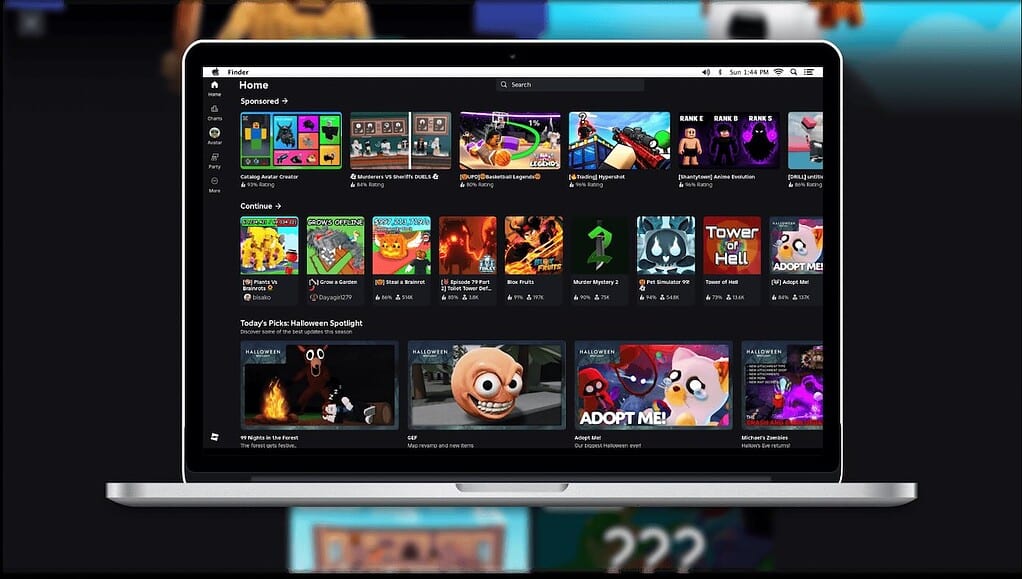


Roblox On MacBook Can You Play It Roblox Mac 1 . Can You Play Roblox On MacBook Everything To Know Play Roblox On MacBook Nove 2025 Featured 1024x579 . Install Roblox At Stanley Blake Blog How To Install Roblox On MacBook Air 1024x683 . How To Get Roblox On MacBook Air M4 Download Install Roblox YouTube . Roblox On MacBook Can You Play It How Do You Download Roblox On A Macbook
#3 Gallery can you get roblox on macbook


Roblox On MacBook Can You Play It FtVpPsQ . How To Control Roblox On Mac DeviceMAG Roblox On Mac 1681909200 1536x960 . How To Download Roblox On Mac Updated 2025 YouTube . How To Update Roblox PC Mac IPhone Android Xbox How To Update Roblox . Roblox On MacBook Can You Play It Update Roblox Mac
#4 Gallery can you get roblox on macbook


How To Download Roblox Images In 2026 A Quick Guide . How To Get Roblox On MacBook Ultimate Guide 1200x1769 . Roblox On MacBook Can You Play It CAN U DOWNLOAD ROBLOX ON MACBOOK AIR 1 . Roblox On Tablets Your Ultimate Guide Roblox Chromebook 2023 Screen 03 Wm.JPG. How To Fix Error Code 262 On Roblox Roblox Oberon Copeland Unsplash
#5 Gallery can you get roblox on macbook


Roblox At School Heres How . How To Download And Play Roblox On Mac YouTube . Can You Download Roblox On Chrome OS Discover How Roblox Chromebook Hero . How Do You Update Roblox On Windows 11 For 2026 How To Update Roblox On Windows And Mac . How To Install Roblox On Mac How To Play Roblox On Mac 2021 YouTube
#6 Gallery can you get roblox on macbook


How To Manually Update Roblox On Windows And Mac TechBriefly Update Roblox On Computer And Mobile Devices Guide . A Mother Or Father S Information To Utilizing Roblox In 2026 Ivugangingo 2026 Parental Guide For Roblox Usage UnicMinds . How Do You Update Roblox On Windows 11 For 2026 . Roblox On The App Store 1200x630wa . Roblox In 2026 Play On Roblox NoFilter
#7 Gallery can you get roblox on macbook


How To Get Roblox On MacBook Ultimate Guide 2507H1 1447x2048 1 86x64 . How To Update Roblox On Mac Manually And Pdate Roblox Mac1 . Roblox On MacBook Can You Play It Download Roblox On Mac 1681909609 Edited.webp. How To Download Roblox Images In 2026 A Quick Guide . Can You Play Roblox On MacBook Everything To Know Everything We Know About The Low Cost MacBook With Fun Colors 2
