If you are a Steam Deck owner in 2026 you have likely faced the frustrating issue where a title refuses to boot up after you press play. This comprehensive guide covers everything from simple software glitches to complex compatibility layers like Proton Experimental. We dive into common reasons like corrupted SD cards outdated system firmware and storage bottlenecks that prevent your handheld from performing at its best. Whether you are playing the latest AAA titles or indie gems from five years ago our troubleshooting steps help you get back into the action without losing your save data. Learn how to verify game files manage your shader cache and select the right compatibility tools to ensure every game in your library runs smoothly. This is the ultimate resource for US gamers looking to optimize their portable gaming experience and solve launch failures once and for all.
[{"question": "Why does my Steam Deck show a black screen when I try to play a game?", "answer": "A black screen usually means the game has launched but the display output is failing or the game has crashed immediately. This is often fixed by forcing a specific Proton version or changing the resolution in the game properties to match the Decks native 1280x800 display."}, {"question": "How do I fix games that crash back to the library after pressing play?", "answer": "This rapid crash is usually a sign of missing files or an incompatible compatibility layer. Verify the game files first then try Proton GE or Experimental. If that fails check if your Deck has at least 10 percent free storage space for swap files."}, {"question": "Is it safe to clear the shader cache on Steam Deck?", "answer": "Yes it is completely safe. Clearing the shader cache just means the game will have to recompile or redownload them which might cause a bit of stutter the next time you play but it often fixes launch failures and graphical glitches."}, {"question": "What are the best Proton versions to use in 2026?", "answer": "Proton 10.0 is the current stable standard but Proton Experimental is best for brand new releases. For games with older video formats or tricky launchers GE Proton remains the community favorite for its broad compatibility."}, {"question": "Can a slow internet connection prevent games from launching?", "answer": "Yes if the game requires a cloud save sync or an initial online check. Try launching the game in Offline Mode to bypass these checks and see if the game starts successfully without a connection."}, {"question": "Do I need to update my BIOS to fix game launches?", "answer": "Rarely. Most issues are software based within SteamOS. However keeping your system updated through the official Settings menu ensures you have the latest firmware which can improve hardware stability and compatibility for newer titles."}, {"question": "Why won't my non Steam games launch on the Deck?", "answer": "Non Steam games often require manual setup of the compatibility layer. Make sure you have gone into the properties of the added shortcut and selected a Proton version otherwise the Deck will try to run the Windows exe natively which will fail."}]In the fast paced world of 2026 gaming where the Steam Deck ecosystem has expanded to include multiple hardware iterations and thousands of verified titles technical hiccups can still disrupt your portable play sessions. When you encounter the frustrating scenario of a steam deck not launching games it is usually tied to compatibility layers software updates or file corruption. This guide provides an expert walkthrough for the modern gamer who needs quick effective solutions to get back into the game without wasting precious leisure time. As we look at the landscape of gaming in 2026 most issues stem from the massive size of modern titles and the complex ways the SteamOS interacts with the Proton translation layer. Whether you are using the original OLED model or the latest hardware revisions the core troubleshooting remains surprisingly consistent.
Why is my Steam Deck not launching games after a recent update
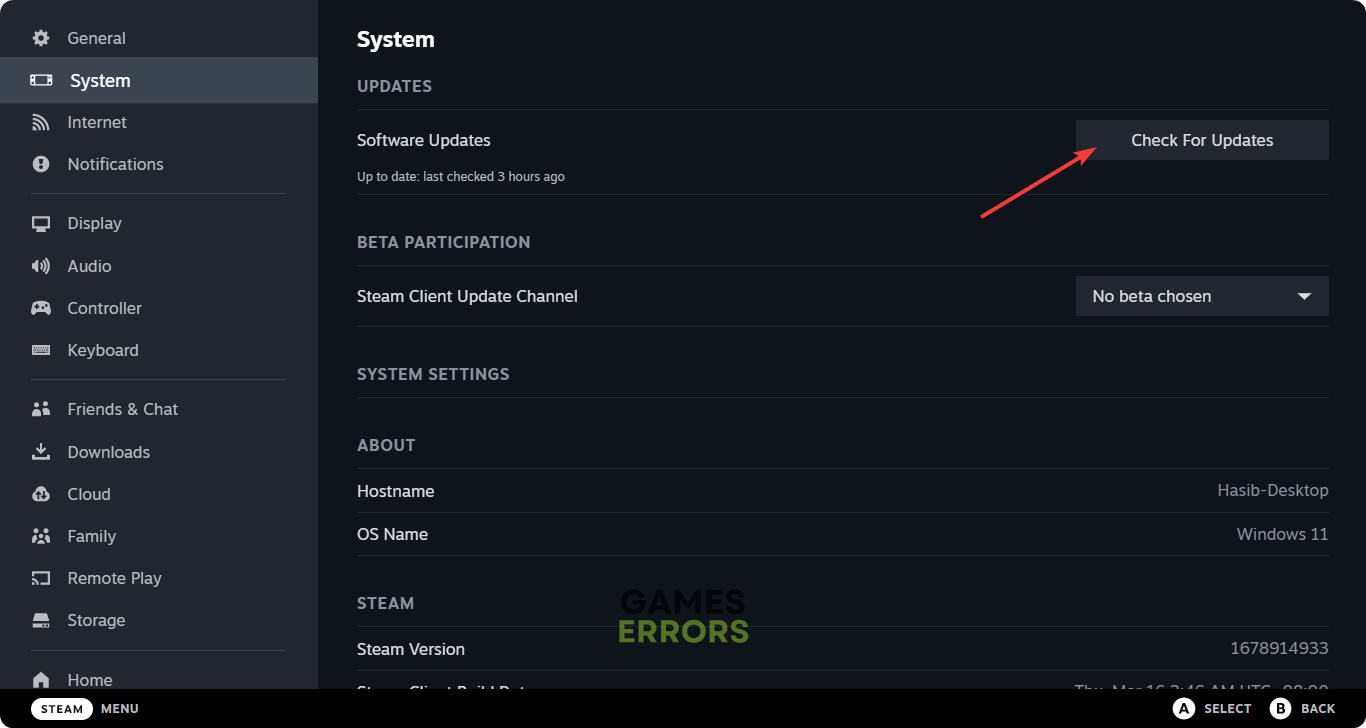
Software updates are the most common culprits for launch failures. Sometimes a new version of SteamOS introduces a conflict with specific game versions or third party launchers. If your game stopped working immediately after a system update the first step is to check if there is a hotfix available. Often Valve releases small patches within 24 hours of a major update to address these specific regressions. You should also check if the game itself had a minor update that requires a newer version of Proton than what you currently have selected. In 2026 the integration of cloud shaders has improved but sometimes the local cache becomes invalid necessitating a manual refresh to ensure the executable can initialize properly.
How do I force a specific Proton version for a game
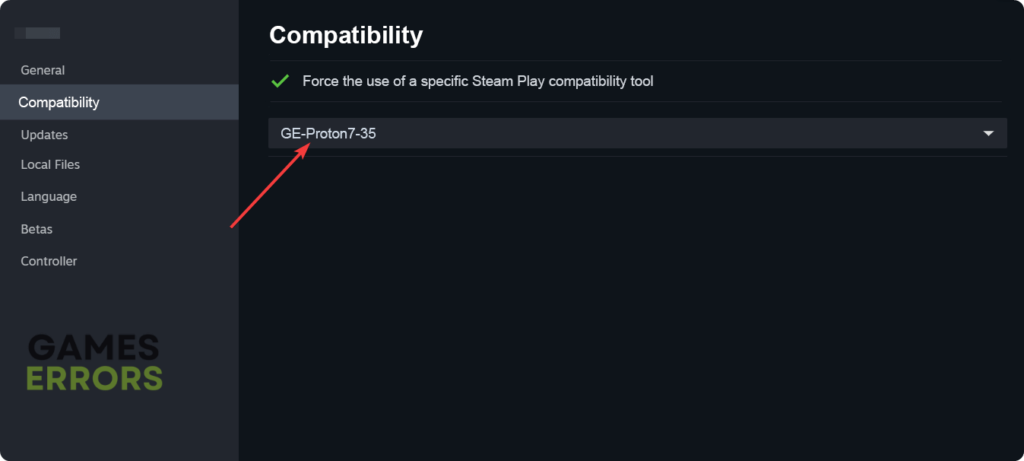
If a game refuses to launch the Proton compatibility tool is your best friend. Navigate to the game in your library select the settings cog icon then go to Properties and then Compatibility. Check the box that says Force the use of a specific Steam Play compatibility tool. For most games Proton Experimental or the latest stable version of Proton 9.0 or 10.0 in 2026 will work. However many community members swear by GE Proton which is a community maintained version that often includes specific fixes for niche titles or games with complex video codecs. Switching versions forces the Steam Deck to rebuild the prefix which often clears out the configuration errors that were preventing the launch in the first place.
What should I do if the game is stuck on the spinning Steam logo
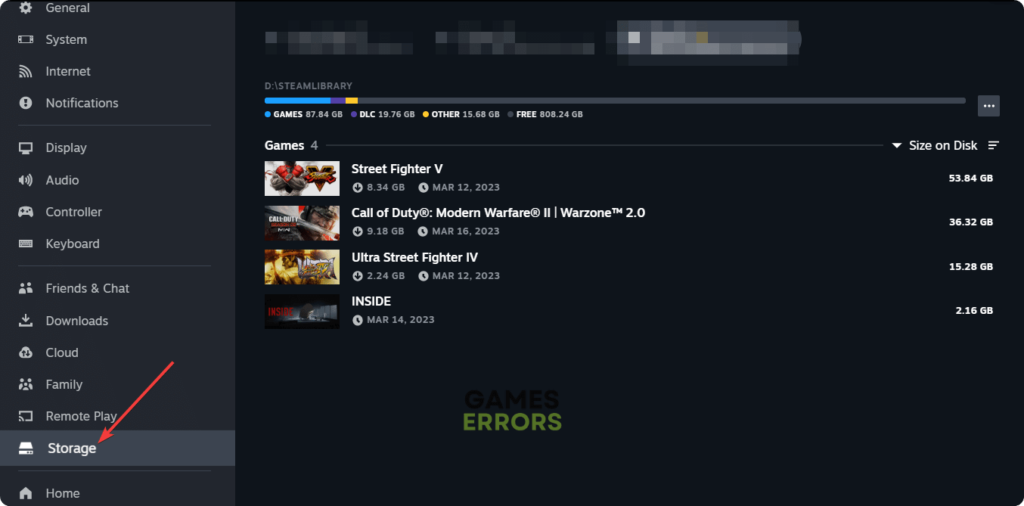
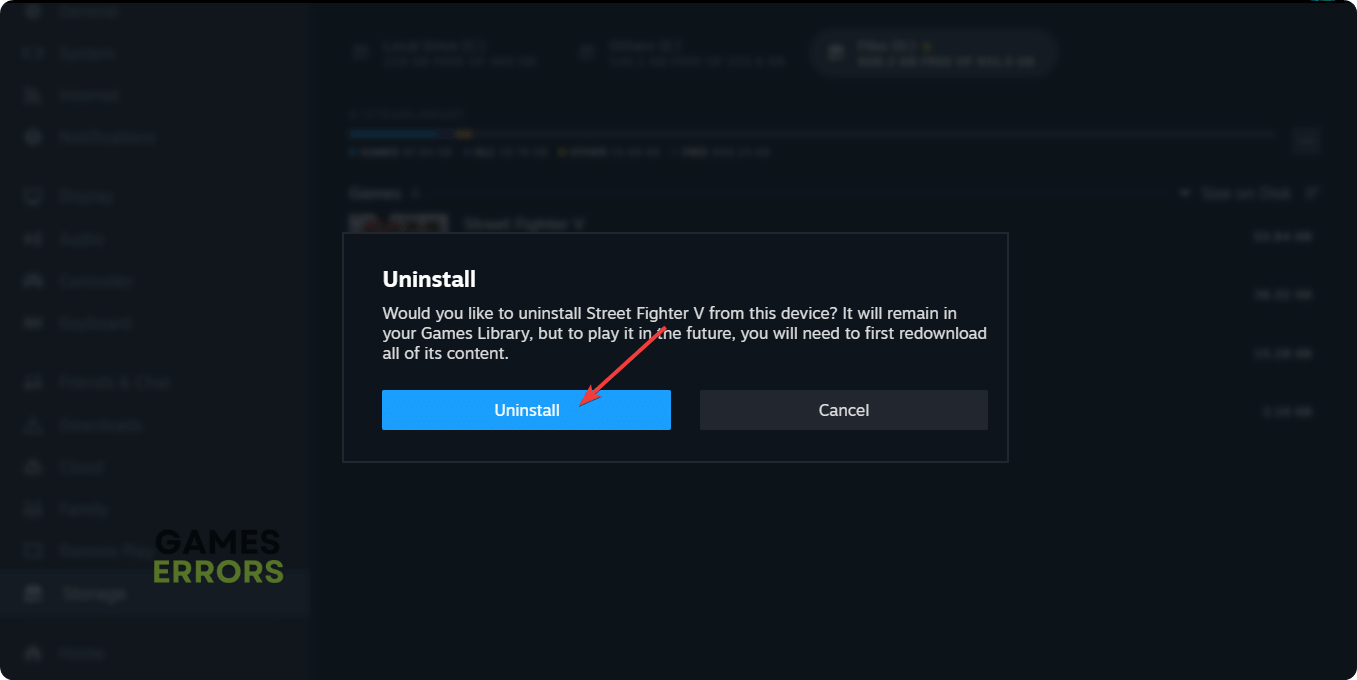
A spinning logo usually indicates that the Steam Deck is attempting to synchronize cloud saves or compile shaders but has hit a wall. This can happen if your internet connection is unstable or if the Steam servers are experiencing high traffic. A quick fix is to put the Deck into Airplane Mode and try launching the game again. If it launches offline the problem is likely related to the cloud sync process. If it still fails you likely have a corrupted shader cache. You can manage this by going to the system settings and selecting the storage tab where you can view and clear shader data for individual games. This forces the system to redownload fresh shaders which usually resolves the hang during the initial boot sequence.
Why are games on my SD card failing to launch
The SD card is a common failure point for Steam Deck users who have expanded their storage. If games on your internal drive work but those on the SD card do not your card might be unmounting itself or suffering from data corruption. First try removing and reinserting the card. If the issue persists go to the storage settings and see if the card is recognized. In some cases the Steam Deck may require you to reformat the card if the file system has been compromised by an improper shutdown. High speed A2 rated cards are the standard in 2026 but even the best cards can wear out after years of heavy read and write cycles from modern open world games.
How does verifying game files fix the launch issue
Corruption happens even in the most stable environments. If a few bytes of a game executable are missing or miswritten during a download the game will simply crash on startup. To fix this go to the game properties select Local Files and then click Verify integrity of game files. The Steam Deck will scan every file in the game folder and compare it against the official server manifest. If any discrepancies are found it will automatically download the correct files. This is a highly effective fix that solves about eighty percent of launch issues without requiring a full reinstall which can be a lifesaver when you are dealing with hundred gigabyte titles.
When is a factory reset necessary for fixing launch problems
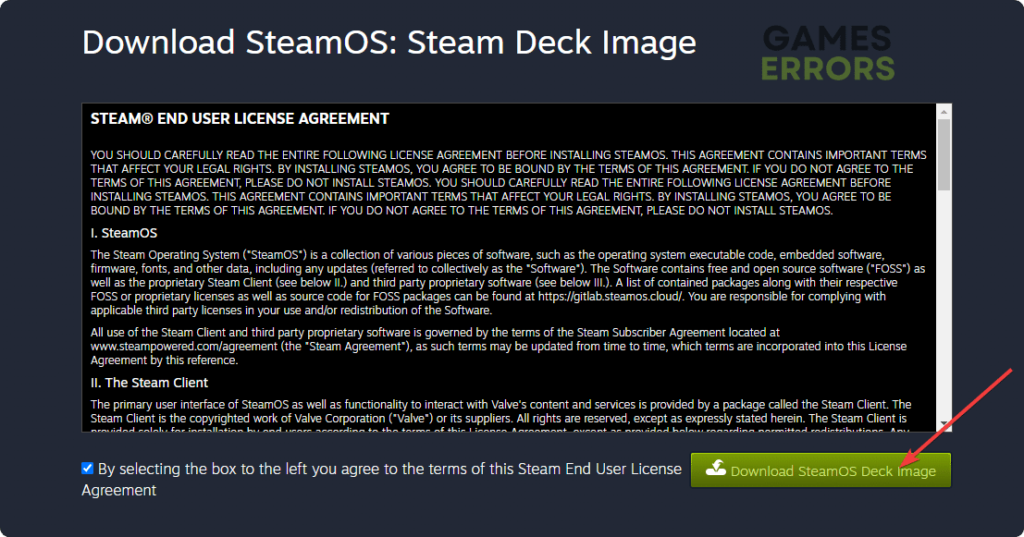
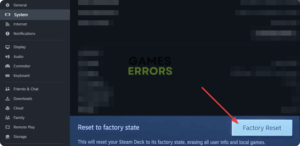
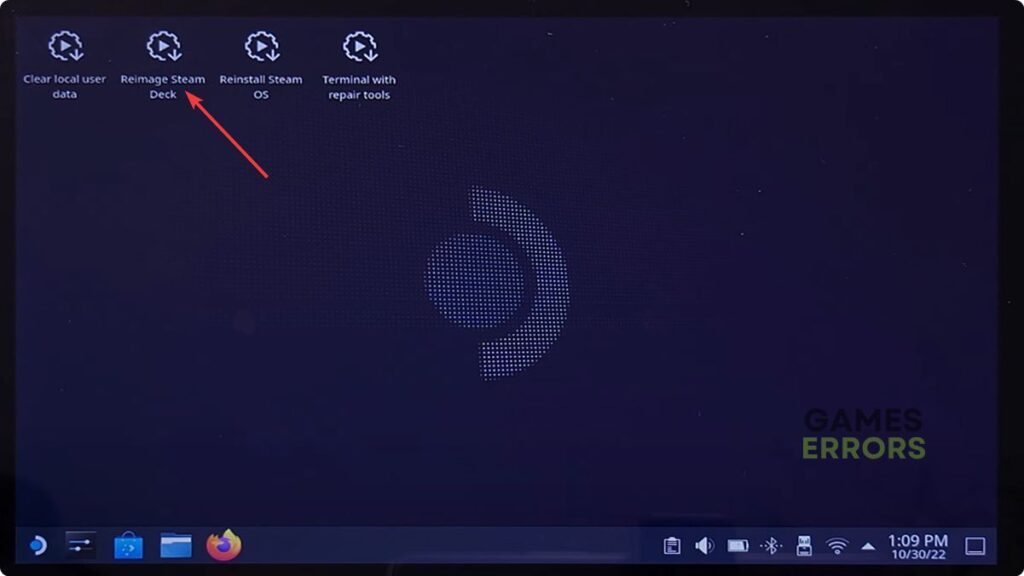
A factory reset should always be your last resort. If you have tried every other step including switching Proton versions clearing caches and verifying files and no games will launch at all you may have a corrupted SteamOS installation. This can occur if you have been experimenting with Desktop Mode and accidentally modified critical system files or if a power failure happened during a system update. Before resetting ensure your cloud saves are backed up. A fresh install of SteamOS 2026 version provides a clean slate and ensures that all system level drivers and the Proton environment are correctly configured. It is the nuclear option but it is guaranteed to resolve any software based conflicts that are not game specific.
Are third party launchers like EA or Ubisoft causing the problem
In 2026 many AAA games still require secondary launchers that often break on the Steam Deck. If a game like Madden or Assassins Creed is not launching it is usually because the launcher itself needs an update that the Steam Deck has not triggered. Often switching to Proton Experimental is the solution because Valve specifically targets these launchers for fixes in the experimental branch. You might also need to delete the Proton prefix for that specific game to force the launcher to reinstall itself. This is done via the Developer menu under the game settings. It is a bit more technical but it is the standard way to fix broken third party software on a Linux based system like the Deck.
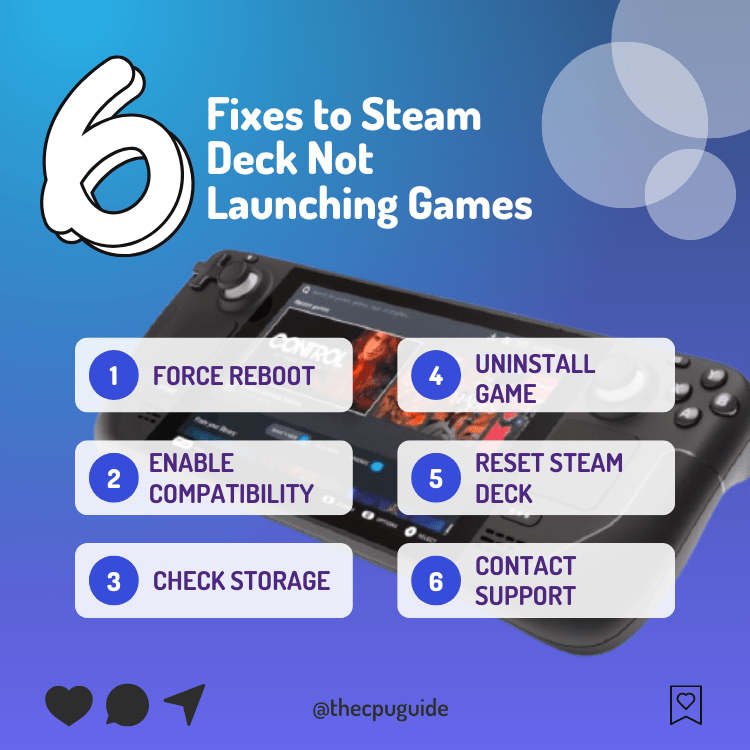
Fast troubleshooting steps, Proton compatibility tool selection, SD card health checks, storage space management, shader cache clearing, and system update verification.
35

Steam Deck Won T Launch Games 9 Fixes That Actually Work 2026 The How To Fix Steam Deck Not Launching Games 1024x576 . How To Fix Games Not Launching On Steam Deck Shader . Games Not Launching On Steam Deck How To Fix Games Not Launching Steam Deck Featured 1536x864 . Steam Deck Not Launching Games Here Are 8 Easy Fixes TCG Steam Deck Wont Launch Any Game 1 . Steam Deck OLED Not Launching Games How To Fix It YouTube


How To Fix Steam Deck OLED Not Launching Games YouTube . Is The Steam Deck Still Worth It In 2025 I D Argue Yes But With . Steam Deck Not Launching Games Here Are 8 Easy Fixes TCG Steam Deck Wont Launch Any Games 1 . All Games Won T Launch R SteamDeck All Games Wont Launch V0 N4EjbLe8 H . Heroic Games Launcher On Steam Deck Not Working Launching Games How Sd3

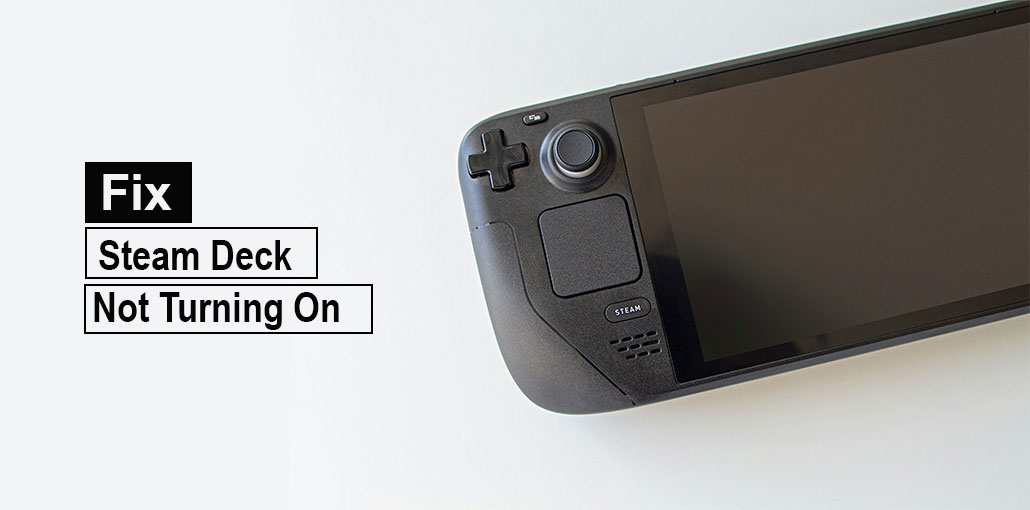

Steam Disk Write Error Top Solutions 2026 Fix Steam Games Not Launching . Steam Deck Not Launching Games In Offline Mode How To Fix Steam Deck Not Launching Games In Offline Mode How To Fix 768x461 . Steam Deck Not Turning On 8 Quick Solutions To Fix It Today Steam Deck Not Turning On . Steam Deck Not Launching Games Here Are 8 Easy Fixes TCG Parsec On Steam Deck . Steam Deck Non Steam Games Not Launching How To Fix It Steam Deck Non Steam Games Not Launching How To Fix It 2
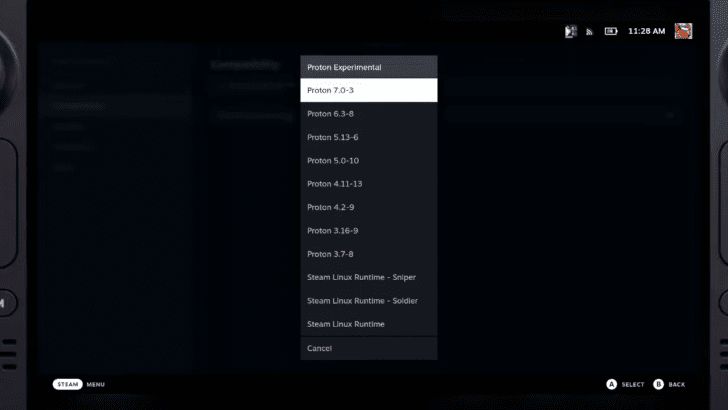


Steam Deck Not Launching Games 4 Fixes Game Voyagers Fix Games Not Loading On Steam Deck 1 17 Screenshot Edited 728x410 . Steam Deck Non Steam Games Not Launching How To Fix It Steam Deck Non Steam Games Not Launching How To Fix It . Steam Games Not Launching 6 Fixes To Solve The Problem Steam Games Not Launching . 2026 S Best Game Is Steam Deck Verified At Launch ComicBook Com S T E A M D E C K . Games Not Launching On Steam Deck How To Fix Download Steamos Deck Image 1024x537


Games Not Launching On Steam Deck How To Fix Changing Proton Version Steam Deck 1024x461 . Games Not Launching On Steam Deck How To Fix Factory Reset Steam Deck 300x146 . Is The Steam Deck Still WORTH IT In 2026 YouTube . How To Fix Steam Games Not Launching Or Not Opening On Windows 10 11 . Games Not Launching On Steam Deck How To Fix Going Storage Steam Deck 1024x506


Games Not Launching On Steam Deck How To Fix Game Steam Deck . Games Not Launching On Steam Deck How To Fix Check For Updates Steam Deck . FIX Steam Games Not Launching On PC 2026 Working Solutions YouTube . Games Not Launching On Steam Deck How To Fix Selecting Reimage Steam Deck 1024x576 . Steam Deck Does Not Fully Support First Big Game Of 2026 ComicBook Com S T E A M D E C K 770bac


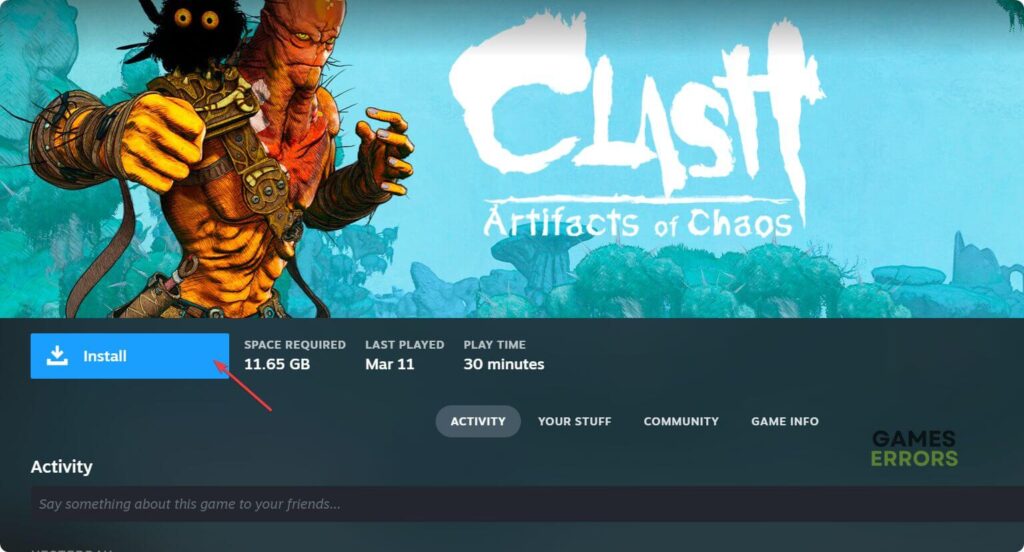
How To Fix Steam VR Games Not Launching 2026 Step By Step YouTube . Steam Deck Not Launching Games 4 Fixes Game Voyagers Steam Deck Not Launching Games 4 Fixes 768x432 . Games Not Launching On Steam Deck How To Fix Selecting Game Steam Deck . Various Titles Not Launching On Steam Deck Heroic Games Launcher Post. Games Not Launching On Steam Deck How To Fix Installing Clash Artifacts Of Chaos Steam Deck 1024x552